An outlook away message does more than tell people you are unavailable. It protects your professional reputation while you are offline. A vague or missing auto-reply leaves colleagues and clients guessing. A well-written one sets clear expectations and keeps work moving in your absence.
The challenge is that most people write their out of office message Outlook auto-reply in a rush, right before they log off. The result is often too generic to be helpful or too long to be read.
This guide gives you 20 ready-to-use examples covering every common scenario. Copy the one that fits, adjust the details, and activate it in under a minute.
What Makes a Good Outlook Away Message?
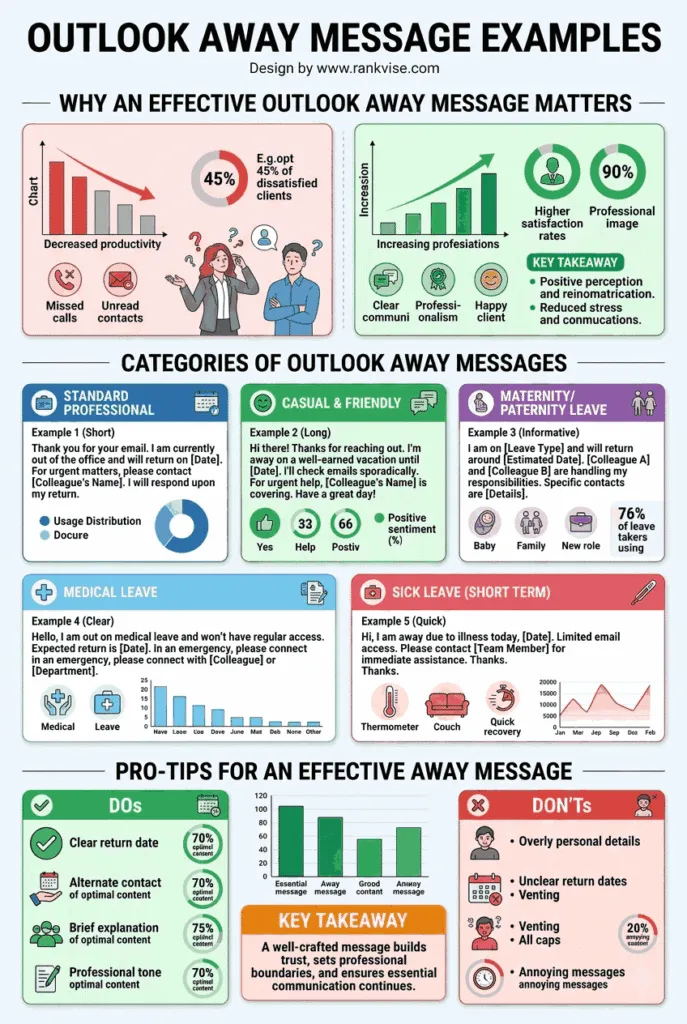
A strong automatic reply Outlook message includes four elements. Miss any one of them and the message falls short.
- Your absence dates — State clearly when you left and when you return. Remove all guesswork for the sender.
- Reason for absence (optional but helpful) — A brief mention of vacation, a conference, or a personal day adds context without oversharing.
- An alternative contact — Always give the sender someone to reach if the matter is urgent. Include a name, email, and phone number where possible.
- Expected response time — Let people know when they can expect to hear from you after you return. This prevents follow-up emails stacking up.
Keep every away message under 100 words. People scan auto-replies quickly. If your message requires scrolling, the important details will get missed.
Vacation Away Message Examples
These templates work for any planned holiday or extended time off.
1. The Classic Vacation Reply
Thank you for your email. I am currently out of the office on vacation from [start date] to [end date]. I will have limited access to email during this time. For urgent matters, please contact [Name] at [email/phone]. I will respond to your message when I return on [date].”
2. The Friendly Vacation Message
“Hi there! I am away from the office enjoying some time off until [return date]. I will not be checking email regularly. If you need immediate help, please reach out to [Name] at [email]. Otherwise, I will get back to you as soon as I return. Thank you for your patience!”
3. The Short and Direct Version
“Out of office until [date]. For urgent requests, contact [Name] at [email]. I will reply to all other messages after I return.”
4. The Team Redirect
“Thanks for your message. I am on vacation through [date]. While I am away, my team is handling all active projects. Please contact [Name] at [email] for anything that needs attention before I return.”
Sick Leave and Medical Away Messages
These examples handle sensitive situations with the right balance of honesty and privacy.
5. The General Sick Leave Reply
“Thank you for your email. I am currently out of the office due to illness and will return on [date] or as soon as I am able. For urgent matters, please contact [Name] at [email]. I appreciate your understanding.”
6. The Extended Medical Leave Message
“I am currently on medical leave and will be away from the office until further notice. For all work-related requests, please contact [Name] at [email/phone]. They are fully briefed on my current projects and will be happy to assist you.”
7. The Brief Health Absence
“I am out sick today and may have delayed responses. If your matter is urgent, please reach [Name] at [email]. I expect to be back online by [date]. Thank you for your patience.”
Conference and Business Travel Examples
Use these when you are working but not at full capacity.
8. The Conference Attendee Message
“I am attending [Conference Name] from [dates] and will have limited email access. I will respond to your message by [date]. For anything urgent, please contact [Name] at [email].”
9. The Business Travel Reply
“Thank you for reaching out. I am currently travelling for business and may be slower than usual to respond. I expect to return to normal response times by [date]. For time-sensitive issues, please reach [Name] at [email].”
10. The Training or Workshop Message
“I am participating in a professional development workshop from [dates]. Email responses will be delayed during this period. For immediate needs, please contact [Name] at [email]. I will follow up after [return date].”
Short Absence and Half-Day Examples
Not every absence requires a long explanation. These keep things quick.
11. The Half-Day Away Message
“I am out of the office this [morning/afternoon] and will return by [time]. I will respond to your email when I am back. For anything urgent, contact [Name] at [email].”
12. The Appointment Away Message
“I am away from my desk for a scheduled appointment and will return by [time] today. I will reply to your email shortly after. Urgent requests can go to [Name] at [email].”
13. The End-of-Day Early Departure
“I have left the office early today and will respond to your email first thing tomorrow morning. For urgent matters this evening, please contact [Name] at [email].”
Holiday Season Away Messages
These templates suit major holiday periods when entire teams may be offline.
14. The Year-End Holiday Message
“Thank you for your email. Our office is closed for the holiday season from [dates]. I will return on [date] and respond to your message promptly. For urgent matters during the closure, please contact [Name] at [email]. Wishing you a wonderful holiday season.”
15. The Public Holiday Reply
“Our office is closed today in observance of [Holiday Name]. I will respond to your email on the next business day, [date]. For emergencies, please reach [Name] at [phone].”
16. The Team Holiday Shutdown
“Our team is on holiday break from [start date] through [end date]. Normal operations resume on [date]. If your request cannot wait, please email [Name] at [email] for limited support during the break.”
Parental Leave and Extended Absence Examples
These handle longer absences with professionalism and clarity.
17. The Parental Leave Message
“Thank you for reaching out. I am currently on parental leave and will return to the office on [date]. During my absence, [Name] at [email] is managing my responsibilities and will be happy to help you.
18. The Sabbatical or Extended Leave
“I am on an extended leave of absence and will not be available until [date]. For all enquiries, please contact [Name] at [email/phone]. They have full context on ongoing projects and are your point of contact until my return.”
Creative and Personality-Driven Examples
These work best in casual workplaces or with familiar contacts.
19. The Lighthearted Vacation Reply
“I am currently out of the office, probably somewhere with better Wi-Fi than common sense. I will return on [date] and tackle your email then. If it is truly urgent, [Name] at [email] can help. If it is not urgent, it will still be here when I get back.”
20. The Honest and Relatable Message
“I am taking some time away to recharge and will be back on [date]. I am not checking email while I am away because boundaries matter. For anything urgent, please reach out to [Name] at [email]. For everything else, I will be in touch after [date]. Thank you for understanding.”
How to Set Up an Automatic Reply in Outlook
Setting up your away message templates takes less than a minute.
- Open Outlook and click File in the top menu bar.
- Select Automatic Replies (Out of Office).
- Choose Send automatic replies and set your start and end dates.
- Type your message in the text box. Use the formatting tools if needed.
- Optionally, create a separate message for contacts outside your organisation.
- Click OK to activate.
Outlook also lets you set rules during your absence. You can automatically forward certain emails, move messages to folders, or flag high-priority items for when you return. These rules help you manage your inbox even when you are not actively checking it.
Tips for Writing a Better Professional Out of Office Email
Follow these guidelines to make every OOO message examples effective and polished.
- Set it up before you leave — Do not wait until you are already out the door. Activate your reply at least 30 minutes before you go offline.
- Proofread the contact details — A wrong email address or phone number in your auto-reply creates more problems than having no reply at all.
- Avoid oversharing — You do not need to explain why you are away in detail. A word or two of context is enough.
- Update the return date if plans change — If your absence extends, log in briefly to update your message. Outdated return dates frustrate senders.
- Turn it off when you return — Nothing looks more unprofessional than an away message still running three days after you are back at your desk.
FAQs
Go to File, select Automatic Replies, choose Send automatic replies, set your dates, type your message, and click OK. The process takes under one minute.
Include your absence dates, a brief reason if appropriate, an alternative contact for urgent matters, and your expected return date. Keep the message under 100 words.
Yes. Outlook lets you create separate messages for people inside your organisation and people outside it. Use the two tabs in the Automatic Replies window.
Keep it between 40 and 80 words. Auto-replies should be scannable and informative. Long messages get skimmed, and critical details like contact information get missed.
Humour works in casual workplaces or with familiar contacts. For external clients, new contacts, or formal industries, keep the tone professional and straightforward.