Skip to content
A single click on a fake invoice. One outdated browser plugin. A USB drive borrowed from a colleague. That is all it takes for malicious software to slip past your defenses and compromise everything on your machine — files, passwords, financial data, and even your webcam.
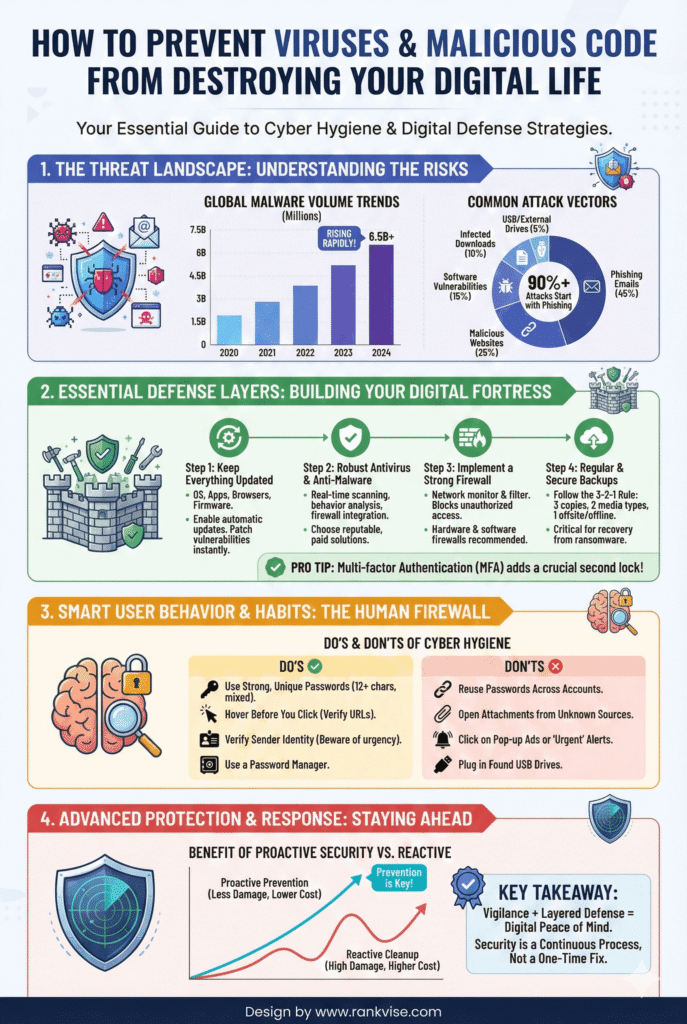
- Keep your operating system and all software up to date with automatic updates to close known vulnerability doors.
- Use reputable antivirus/anti-malware with real-time protection, automatic updates, web protection, and ransomware shielding.
- Never open unexpected links or attachments; verify senders and type URLs directly to avoid phishing delivery.
- Back up data regularly using the 3-2-1 rule and automate backups to recover from ransomware without paying.
- Practice strong password hygiene with a password manager and enable multi-factor authentication everywhere possible.
The threat is not theoretical. Security researchers detect over 560,000 new malware samples every single day. Ransomware costs are climbing past 4 million USD per incident for businesses. And for individuals, a single identity theft event can take months and thousands of dollars to resolve.
The good news is that most infections are entirely preventable. Understanding how you can prevent viruses and malicious code starts with knowing what you are up against, followed by building habits and systems that shut the door before threats walk through. This guide gives you everything you need — in plain language, with steps you can act on today.
What Exactly Are Viruses and Malicious Code
Before you can protect your computer from malware, you need to understand what these threats actually are and how they differ from one another.
A virus is a specific type of malicious software that attaches itself to a legitimate file or program. It stays dormant until you open that file. Once activated, it replicates by inserting copies of itself into other files, spreading across your system and potentially to other devices on the same network.
Malicious code is the broader category. It includes viruses but also covers worms, trojans, ransomware, spyware, adware, and rootkits. Think of “malicious code” as the umbrella term for anything designed to damage, steal, or disrupt without your consent.
Here is a quick breakdown of the most common types:
| Threat Type | How It Spreads | What It Does | Real-World Example |
|---|---|---|---|
| Virus | Attaches to files, spreads when opened | Corrupts data, slows systems | ILOVEYOU virus (2000) |
| Worm | Self-replicates across networks without user action | Consumes bandwidth, installs backdoors | WannaCry (2017) |
| Trojan | Disguised as legitimate software | Opens backdoors for attackers | Emotet banking trojan |
| Ransomware | Phishing emails, exploit kits | Encrypts files, demands payment | LockBit, Clop |
| Spyware | Bundled with free software, malicious sites | Steals passwords, tracks activity | Pegasus spyware |
| Rootkit | Exploits OS vulnerabilities | Hides deep in the system, grants persistent access | ZeroAccess rootkit |
Understanding these categories helps you recognize which malware prevention strategies apply to each scenario.
Why Prevention Matters More Than Recovery
Many people assume they will deal with a virus if and when it happens. That mindset is expensive. The average cost of a malware attack on a small business sits around 200,000 USD. Roughly 60 percent of small businesses that suffer a major cyberattack shut down within six months.
For individuals, the stakes are different but still painful. A compromised email account can lead to stolen bank credentials. Spyware on your laptop can capture every keystroke, including credit card numbers. Ransomware can lock you out of irreplaceable family photos.
Recovery is always harder, slower, and costlier than prevention. The strategies below work because they address the most common entry points attackers exploit — before they get in.
10 Proven Ways to Prevent Viruses and Malicious Code
1. Keep Your Operating System and Software Updated
Every software update you skip is a door left open for attackers. Hackers actively scan for devices running outdated operating systems because known vulnerabilities are publicly documented.
Turn on automatic updates for your operating system, web browser, and every application you use regularly. On Windows, go to Settings, then Update and Security. On Mac, check System Settings under Software Update. This single habit closes the majority of vulnerability-based attack paths.
2. Use Reputable Antivirus and Anti-Malware Software
Modern antivirus protection goes well beyond scanning for known virus signatures. Today’s tools use behavioral analysis and machine learning to detect suspicious activity in real time — even from threats no one has seen before.
Choose a solution that includes real-time scanning, automatic updates, web protection, and ransomware shielding. Both free options like Microsoft Defender and paid suites like Bitdefender or Malwarebytes offer strong protection. The key is to keep them active and updated at all times.
3. Never Click Links or Open Attachments You Did Not Expect
Phishing email protection starts with a simple rule: if you did not expect it, do not click it. Phishing remains the number one delivery method for malware. Attackers craft emails that mimic banks, shipping companies, or even your own IT department.
Look for red flags like misspelled sender domains, urgent language demanding immediate action, and attachments with extensions like .exe, .zip, or .js. When in doubt, visit the website directly by typing the URL into your browser rather than clicking any link in the email.
4. Download Software Only From Trusted Sources
Free software from unknown websites is one of the most common trojan delivery methods. That “free PDF editor” or “cracked” application often comes bundled with spyware, adware, or worse.
Stick to official app stores, vendor websites, and verified repositories. On mobile devices, avoid sideloading apps from third-party sources. On desktops, verify the publisher’s digital signature before running any installer.
5. Enable Your Firewall and Keep It Active
A firewall acts as a gatekeeper between your device and the internet. It monitors incoming and outgoing traffic and blocks connections that look suspicious or unauthorized.
Both Windows and macOS ship with built-in firewalls that work well for most users. Make sure yours is turned on. For businesses, a dedicated hardware firewall adds a second layer of network-level protection that filters traffic before it even reaches individual devices.
6. Use Strong, Unique Passwords With Multi-Factor Authentication
Weak or reused passwords make it easy for attackers to move laterally once they compromise a single account. If your email password is the same as your banking password, one breach exposes both.
Use a password manager to generate and store unique passwords for every account. Then enable multi-factor authentication wherever it is available. This adds a second verification step — usually a code sent to your phone — that blocks unauthorized access even if your password is stolen.
7. Practice Safe Browsing Habits Every Day
Your web browser is one of the primary attack surfaces for malicious code. Drive-by downloads, malicious ads, and compromised websites can all deliver infections without requiring you to click anything obvious.
Keep your browser updated. Install a reputable ad blocker to reduce exposure to malvertising. Avoid visiting piracy sites, unofficial streaming platforms, and websites your browser flags as unsafe. These safe browsing habits eliminate a huge percentage of web-based threats.
8. Back Up Your Data Regularly
Backups do not prevent infections, but they neutralize the worst consequences — especially ransomware. If your files are encrypted by an attacker, a recent backup means you can restore everything without paying a cent.
Follow the 3-2-1 backup rule: keep three copies of your data, store them on two different media types, and keep one copy offsite or in the cloud. Automate the process so backups happen daily without you needing to remember.
9. Secure Your Home and Office Network
Your Wi-Fi network is a shared entry point for every connected device in your home or office. A poorly secured router gives attackers a foothold to reach everything on your network.
Change the default router password immediately. Use WPA3 encryption if your router supports it. Disable WPS, which has known vulnerabilities. Create a separate guest network for visitors and smart home devices so they remain isolated from your primary machines.
10. Educate Yourself and Your Team Continuously
Human error accounts for roughly 95 percent of successful cyberattacks. No tool or software can fully protect you if you or your colleagues consistently fall for social engineering tactics.
For businesses, run security awareness training at least quarterly. Cover phishing simulations, password hygiene, and safe file-sharing practices. For individuals, simply staying informed about current scam techniques makes you a harder target. Cybersecurity best practices evolve constantly — your knowledge should keep pace.
How to Spot the Warning Signs of an Infection
Even with strong prevention, knowing the early signs of compromise helps you respond before damage spreads.
- Your computer suddenly runs significantly slower than normal for no obvious reason.
- Unfamiliar programs appear in your startup list or task manager.
- Your browser redirects to websites you did not request.
- Pop-up ads appear even when your browser is closed.
- Files are missing, renamed, or encrypted with strange extensions.
- Your antivirus software has been disabled without your knowledge.
- Contacts report receiving strange emails or messages from your accounts.
If you notice any of these symptoms, disconnect from the internet immediately. Run a full antivirus scan. Change your passwords from a clean device. For businesses, alert your IT team and follow your incident response plan.
Personal vs. Business Protection: What Changes at Scale
The core principles of malware prevention strategies remain the same whether you are protecting a single laptop or a network of 500 endpoints. The scale and tools differ, but the philosophy does not.
| Protection Area | Individual Users | Businesses |
|---|---|---|
| Antivirus | Consumer-grade (Defender, Bitdefender) | Enterprise endpoint detection and response (EDR) |
| Updates | Automatic OS and app updates | Centralized patch management system |
| Email Security | Personal spam filters, cautious clicking | Advanced email gateways with AI-based filtering |
| Backups | Cloud storage and external drive | Automated backups with offsite and air-gapped copies |
| Network Security | Router password, WPA3 encryption | Network segmentation, dedicated firewalls, VPN |
| Training | Self-education, staying informed | Formal quarterly awareness programs, phishing simulations |
| Access Control | Strong passwords, MFA | Role-based access, zero trust architecture, MFA |
Businesses should also consider application whitelisting, which allows only pre-approved software to run on company devices. This blocks unknown executables from launching, even if an employee accidentally downloads a malicious file.
What to Do If You Are Already Infected
If prevention did not catch the threat in time, act quickly. Speed limits the damage.
- Disconnect the infected device from the internet and your local network immediately.
- Boot into Safe Mode if possible to prevent the malware from running actively.
- Run a full scan with your antivirus software or a dedicated malware removal tool.
- Delete or quarantine every flagged file the scan identifies.
- Change all passwords from a separate, clean device — starting with email and banking accounts.
- Restore your files from a backup created before the infection occurred.
- Update your operating system and all software to close the vulnerability that was exploited.
- Monitor your financial accounts and credit reports for unusual activity over the following weeks.
For ransomware specifically, security experts consistently advise against paying the ransom. Payment does not guarantee file recovery, and it funds further criminal activity. Restore from backups instead.
Building a Long-Term Cybersecurity Routine
Prevention is not a one-time setup. Threats evolve, and your defenses must evolve with them. Build a recurring routine that keeps your protection current.
Review your installed software monthly and remove anything you no longer use. Each unnecessary application is extra attack surface. Check your antivirus subscription and renewal dates quarterly. Run a manual full-system scan at least once a month, even if real-time protection is active. Test your backups periodically by restoring a file to confirm they actually work.
For businesses, schedule annual security assessments. Penetration testing reveals weaknesses that internal reviews often miss. Subscribe to threat intelligence feeds from organizations like CISA or your industry’s information-sharing group to stay ahead of emerging attack methods.
The question of how you can prevent viruses and malicious code does not have a single answer. It has layers. And the more layers you build, the harder you become to breach.
FAQs
Keeping your operating system and all software updated is the most impactful step. Most attacks exploit known vulnerabilities that patches have already fixed.
Yes, drive-by downloads exploit browser or plugin vulnerabilities to install malware automatically. Keeping your browser updated and using an ad blocker significantly reduces this risk.
Free tools like Microsoft Defender provide solid baseline protection for most individuals. Businesses or high-risk users benefit from paid suites with advanced features like ransomware rollback and VPN.
Daily automated backups are ideal. Use the 3-2-1 rule — three copies, two media types, one offsite — to ensure you can always restore files without paying a ransom.
Yes. While Windows faces the highest volume of threats, Mac and Linux malware has grown significantly. Both platforms benefit from active antivirus software and the same safe browsing practices.