
You try to upload a file. The page fails. A cryptic message appears: 413 Request Entity Too Large. Nothing else. No helpful guidance. Just a dead end.
Error 413 is one of the most common HTTP status codes that blocks file uploads and form submissions. It means your request exceeded the size limit set by the server. The good news is that fixing it usually takes just a few minutes.
This guide explains what causes error 413, how to resolve it across different server environments, and how to prevent it from disrupting your users again.
What Does Error 413 Mean?
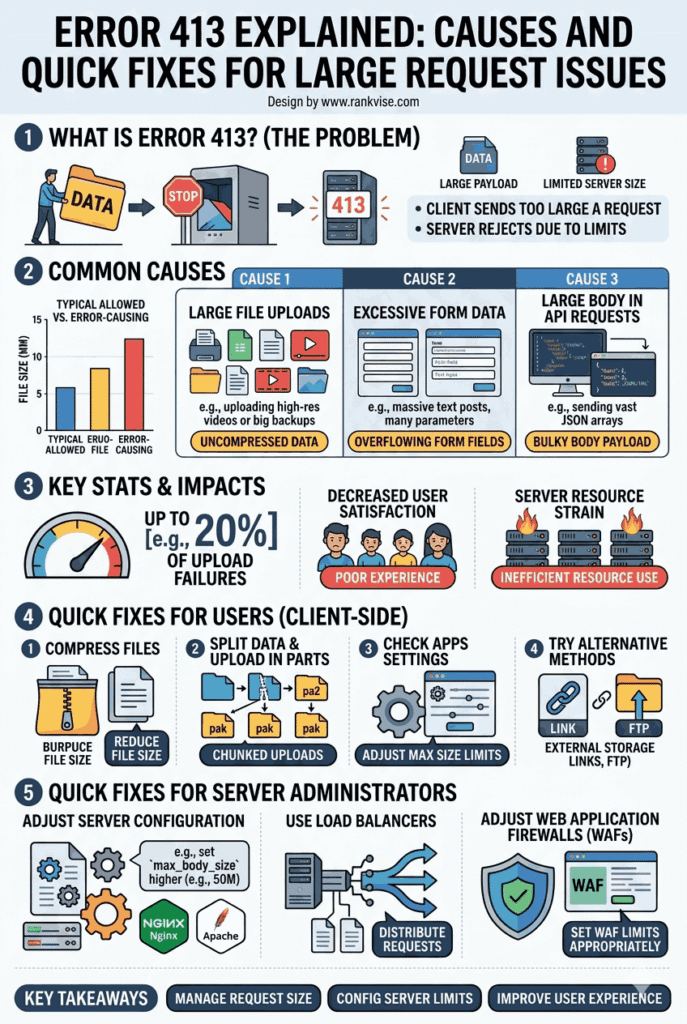
Error 413 is an HTTP response status code. The server returns it when the data you send exceeds the maximum allowed size. The official name is 413 Payload Too Large, though older references call it 413 Request Entity Too Large.
Every web server sets a limit on how much data it accepts per request. This limit exists for security and performance reasons. Without it, anyone could overwhelm your server by sending massive files.
When a client, whether a browser, app, or API, sends a request body larger than that limit, the server rejects it immediately. It does not process the request at all. It simply returns error 413 and closes the connection.
This affects file uploads most often. But it can also trigger during large form submissions, API calls with heavy payloads, or bulk data transfers.
What Causes the 413 Payload Too Large Error?
Several factors cause the server to reject requests with a 413 status code. Understanding the root cause helps you apply the right fix.
Server Configuration Limits
Web servers like Nginx and Apache set default upload size limits. Nginx defaults to just 1 MB. Apache typically allows larger payloads but still enforces a cap. If you never adjusted these defaults, most file uploads will fail.
Application-Level Restrictions
Your application framework may impose its own limits. PHP, Node.js, Django, and WordPress all have separate upload size configurations. Even if your server allows large files, the application layer might block them first.
Reverse Proxy Settings
Many websites use a reverse proxy like Nginx in front of an application server. Both layers have independent size limits. The stricter limit wins. If Nginx allows 10 MB but your backend allows 50 MB, uploads over 10 MB still fail.
CDN or Load Balancer Limits
Content delivery networks and load balancers add another potential bottleneck. Services like Cloudflare, AWS Elastic Load Balancer, and Azure Front Door enforce their own request size limits. These settings often get overlooked during troubleshooting.
Here is a quick reference of common default limits:
| Service / Server | Default Upload Limit |
|---|---|
| Nginx | 1 MB |
| Apache | 2 GB (but PHP limits apply) |
| PHP (post_max_size) | 8 MB |
| PHP (upload_max_filesize) | 2 MB |
| Cloudflare (Free plan) | 100 MB |
| AWS API Gateway | 10 MB |
| IIS (Internet Information Services) | 30 MB |
How to Fix Error 413 on Nginx
Nginx is the most common culprit behind error 413. Its default 1 MB limit catches most users off guard. Fortunately, the fix takes one line of configuration.
Open your Nginx configuration file. This is typically located at /etc/nginx/nginx.conf or within a site-specific file in /etc/nginx/sites-available/.
Add or modify the client_max_body_size directive:
client_max_body_size 50M;
You can place this directive inside the http, server, or location block depending on how broadly you want it applied.
- Place it in the http block to apply the limit globally across all sites
- Place it in a specific server block to limit one virtual host
- Place it in a location block to restrict a single URL path
After saving the file, test the configuration and reload Nginx:
nginx -t sudo systemctl reload nginx
The first command checks for syntax errors. The second applies the changes without downtime.
How to Fix Error 413 on Apache
Apache rarely causes error 413 on its own because its default limit is generous. However, PHP settings and the LimitRequestBody directive can still trigger it.
Adjust the LimitRequestBody Directive
Open your Apache configuration file or the relevant .htaccess file. Add or update this directive:
LimitRequestBody 52428800
This value is in bytes. The example above sets the limit to 50 MB. Set it to 0 to remove the limit entirely, though that is not recommended for production environments.
Update PHP Configuration
PHP enforces two separate size limits that commonly cause upload failures. Both must be adjusted together.
Open your php.ini file and update these values:
upload_max_filesize = 50M post_max_size = 55M
Always set post_max_size slightly higher than upload_max_filesize. The post size includes the file plus any additional form data sent with it.
Restart Apache after making changes:
sudo systemctl restart apache2
How to Fix Error 413 in WordPress
WordPress inherits its upload limits from PHP and the web server. You do not usually fix this inside WordPress itself. Instead, you adjust the underlying server and PHP settings.
However, if you lack server access, WordPress offers a few workarounds:
- Add
php_value upload_max_filesize 50Mandphp_value post_max_size 55Mto your .htaccess file - Edit the wp-config.php file and add
@ini_set('upload_max_filesize', '50M'); - Use a plugin like WP Maximum Upload File Size to adjust limits through the dashboard
Check your current limits by navigating to Media and clicking Add New. WordPress displays the maximum upload file size at the bottom of the upload area.
If you use managed WordPress hosting, the hosting provider may control these limits. Contact their support team to request an increase.
How to Fix Error 413 on Cloudflare
Cloudflare enforces request size limits based on your plan tier. If your server settings are correct but uploads still fail, Cloudflare might be the bottleneck.
Here are the upload limits by plan:
| Cloudflare Plan | Maximum Upload Size |
|---|---|
| Free | 100 MB |
| Pro | 100 MB |
| Business | 200 MB |
| Enterprise | 500 MB (customizable) |
You cannot change these limits within the Cloudflare dashboard on non-Enterprise plans. If you need to bypass them, configure your upload endpoint to go directly to your origin server instead of routing through Cloudflare.
Another option is using Cloudflare Workers or direct upload URLs that bypass the proxy layer entirely.
How to Fix Error 413 in Node.js and Express
Node.js applications using Express have their own body size limits. The default for JSON and URL-encoded payloads is typically 100 KB, which is quite small.
Update the limit in your Express application:
app.use(express.json({ limit: '50mb' })); app.use(express.urlencoded({ limit: '50mb', extended: true }));
For file uploads using libraries like Multer, set the file size limit within the Multer configuration:
const upload = multer({ limits: { fileSize: 50 * 1024 * 1024 } });
Restart your application after making these changes. If you run Node.js behind Nginx, remember to update the Nginx limits as well.
How to Prevent Error 413 From Affecting Users
Fixing the error after it happens is reactive. Preventing it from occurring gives your users a smoother experience from the start.
Validate File Size on the Client Side
Check file sizes before the upload begins. A few lines of JavaScript can warn users immediately if their file exceeds the allowed limit. This avoids wasted time and frustrating error messages.
Display Clear Upload Limits
Tell users the maximum file size before they attempt an upload. A simple note like “Maximum file size: 25 MB” near the upload button eliminates confusion.
Compress Files Before Upload
Offer client-side compression for images and documents. Libraries like browser-image-compression reduce file sizes automatically before they reach the server.
Use Chunked Uploads for Large Files
For applications that handle very large files, implement chunked uploading. This technique splits files into smaller pieces and sends them sequentially. Each chunk stays under the server limit, and the server reassembles the complete file after all chunks arrive.
Popular libraries for chunked uploads include:
- Resumable.js for general use
- tus-js-client for the tus open protocol
- Uppy by Transloadit for a full-featured upload experience
Monitor and Log 413 Errors
Add monitoring to catch 413 errors in production. Tools like Datadog, New Relic, or simple server log analysis help you spot patterns. If a specific endpoint generates frequent 413 errors, its limit likely needs adjustment.
Error 413 vs Other HTTP Status Codes
Error 413 is sometimes confused with other HTTP errors that also block requests. Here is how it compares to similar status codes.
| Status Code | Name | Meaning |
|---|---|---|
| 400 | Bad Request | Server cannot process the request due to malformed syntax |
| 403 | Forbidden | Server understands the request but refuses to authorize it |
| 408 | Request Timeout | Server timed out waiting for the client to finish sending |
| 413 | Payload Too Large | Request body exceeds the server’s configured size limit |
| 414 | URI Too Long | The URL itself is too long for the server to process |
If you see a 408 error instead of 413, the file might be large enough that the connection times out before the server even evaluates the payload size. In that case, you may need to increase both size limits and timeout values.
FAQs
It means the data you sent to the server exceeds its maximum allowed size. The server rejects the request without processing it.
Add client_max_body_size 50M; to your Nginx configuration file, then run nginx -t and reload Nginx with sudo systemctl reload nginx.
WordPress relies on PHP and server settings for upload limits. Update upload_max_filesize and post_max_size in your php.ini file or .htaccess to increase the allowed size.
Yes. Cloudflare enforces its own upload limits based on your plan. Free and Pro plans cap uploads at 100 MB regardless of your origin server settings.
Validate file sizes on the client side before uploading, display clear size limits, and consider chunked uploads for large files to stay within server thresholds.