The dns server not responding error means your device cannot connect to the server that translates website names into IP addresses. When you type a web address, DNS converts it into numbers your computer understands. If that server fails to answer, no websites load.
Think of DNS as the internet’s phone book. You search a name, and it returns the number. When the phone book is unavailable, you cannot dial anyone even though the phone line works perfectly fine.
This error does not always mean your internet connection is broken. Your network hardware might work normally. The problem sits specifically between your device and the DNS server it is trying to reach.
What Causes the DNS Server Not Responding Error?
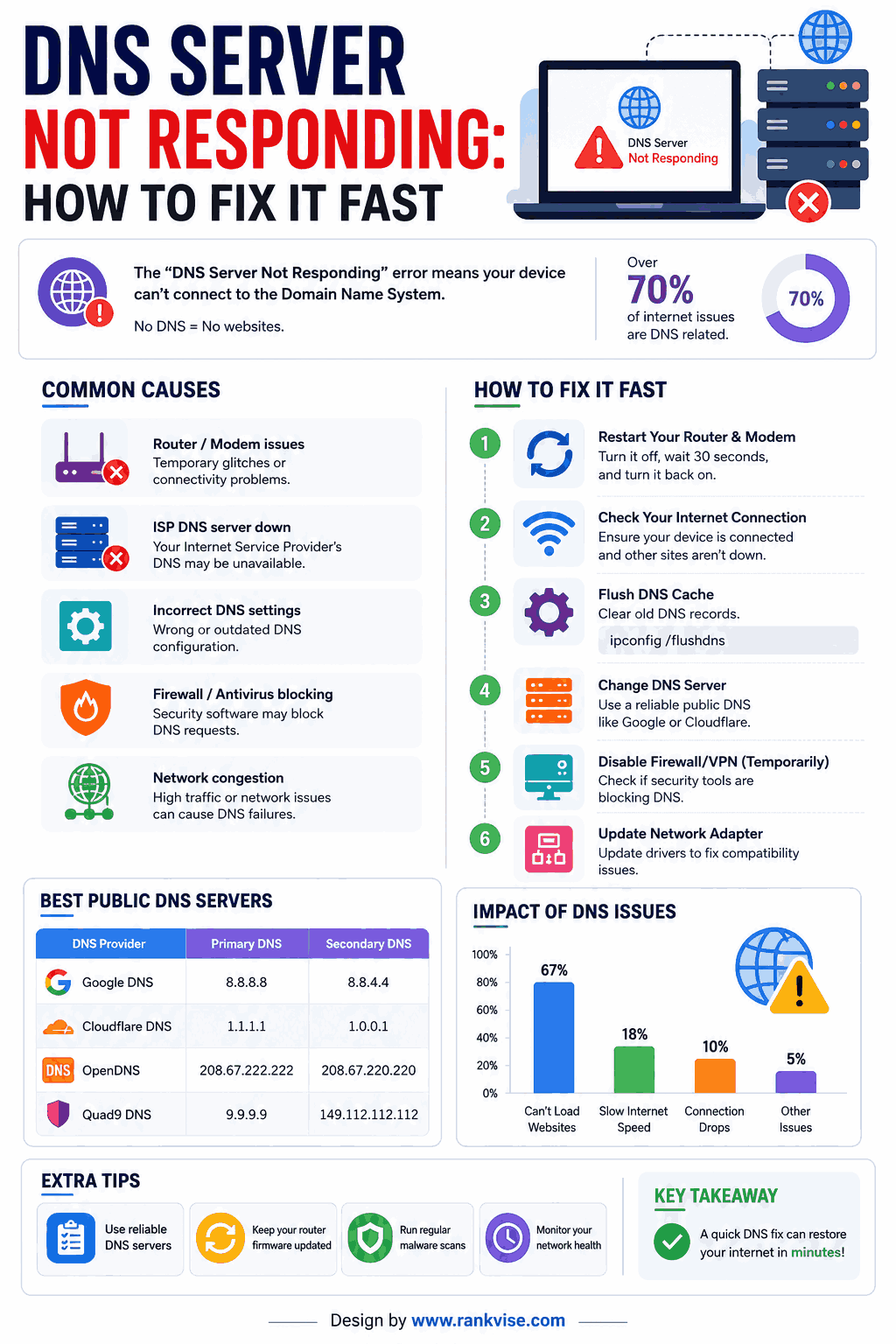
Multiple factors trigger this frustrating error. Identifying the cause helps you choose the right fix quickly.
Common Causes
- Your internet service provider’s DNS server is temporarily down
- Your router needs a restart to refresh its network settings
- Outdated or corrupted network adapter drivers on your computer
- Firewall or antivirus software blocking DNS requests
- Incorrect DNS settings configured on your device
- Browser cache containing outdated DNS records
- Network congestion or ISP-level routing issues
Less Obvious Causes
Sometimes the problem hides deeper. A recent software update may have changed your network configuration. Malware can redirect DNS queries to fake servers. Multiple network adapters running simultaneously create conflicts that prevent proper DNS resolution.
How to Fix DNS Server Not Responding on Windows
Windows users encounter this error frequently. Work through these solutions in order, starting with the simplest fixes first.
Step 1: Restart Your Router and Modem
Power cycling your network equipment resolves the issue in roughly 50% of cases. Unplug your router and modem from power. Wait 30 seconds. Plug the modem back in first. Wait for it to fully connect. Then plug in your router.
This forces both devices to establish fresh connections with your ISP’s DNS servers. Temporary glitches disappear after a clean restart.
Step 2: Flush Your DNS Cache
Your computer stores DNS records locally to speed up browsing. These cached records sometimes become outdated or corrupted. Flushing them forces your system to request fresh information.
- Press Windows key and type Command Prompt
- Right-click and select Run as Administrator
- Type
ipconfig /flushdnsand press Enter - Wait for the confirmation message
- Restart your browser and test your connection
Step 3: Change Your DNS Server Address
Your ISP’s default DNS server may be overloaded or experiencing downtime. Switching to a public DNS server often resolves the issue immediately.
| DNS Provider | Primary Address | Secondary Address | Speed |
|---|---|---|---|
| Google DNS | 8.8.8.8 | 8.8.4.4 | Fast |
| Cloudflare | 1.1.1.1 | 1.0.0.1 | Fastest |
| OpenDNS | 208.67.222.222 | 208.67.220.220 | Reliable |
| Quad9 | 9.9.9.9 | 149.112.112.112 | Secure |
To change DNS on Windows:
- Open Control Panel and go to Network and Sharing Center
- Click Change Adapter Settings
- Right-click your active connection and select Properties
- Select Internet Protocol Version 4 (TCP/IPv4)
- Click Properties and select Use the following DNS server addresses
- Enter your preferred DNS addresses and click OK
Step 4: Disable Extra Network Adapters
Multiple active network adapters confuse your system’s DNS routing. Disable any adapters you are not currently using.
- Open Device Manager from the Start menu
- Expand Network Adapters
- Right-click unused adapters like virtual adapters or Bluetooth connections
- Select Disable Device for each unused adapter
Step 5: Update Your Network Adapter Driver
Outdated drivers cause communication failures between your hardware and operating system. Visit your adapter manufacturer’s website and download the latest driver. Alternatively, right-click the adapter in Device Manager and select Update Driver.
How to Fix DNS Server Not Responding on Mac
Mac users face this same error with slightly different solutions. The troubleshooting logic remains identical, but the steps differ.
Flush DNS Cache on macOS
- Open Terminal from Applications or Spotlight search
- Type
sudo dscacheutil -flushcache; sudo killall -HUP mDNSResponder - Press Enter and type your admin password when prompted
- Close Terminal and test your connection
Change DNS Settings on Mac
- Open System Settings and click Network
- Select your active connection (Wi-Fi or Ethernet)
- Click Details, then select DNS from the sidebar
- Remove existing DNS addresses using the minus button
- Add new addresses like 1.1.1.1 and 1.0.0.1 using the plus button
- Click OK and then Apply
Renew Your DHCP Lease
This forces your Mac to request a fresh network configuration from your router. Go to System Settings, click Network, select your connection, click Details, then TCP/IP. Click Renew DHCP Lease. Your Mac obtains fresh network settings including updated DNS information.
How to Fix DNS Server Not Responding on Mobile Devices
Phones and tablets also encounter DNS resolution failures. The fixes are quick and straightforward.
Fix on iPhone
- Open Settings and tap Wi-Fi
- Tap the info icon next to your connected network
- Scroll to DNS and tap Configure DNS
- Select Manual and delete existing servers
- Add 8.8.8.8 and 8.8.4.4 as new entries
- Tap Save and test your connection
Fix on Android
- Open Settings and tap Network & Internet
- Tap your Wi-Fi network name and select the edit icon
- Expand Advanced Options
- Change IP Settings from DHCP to Static
- Enter 1.1.1.1 as DNS 1 and 1.0.0.1 as DNS 2
- Save changes and reconnect
Alternatively, enable Private DNS in Android settings. Set it to one.one.one.one or dns.google for system-wide DNS protection across all networks.
Advanced Troubleshooting When Basic Fixes Fail
If simple solutions don’t resolve the dns server not responding error, deeper issues may exist. Try these advanced methods.
Reset TCP/IP Stack on Windows
This resets your entire network configuration to factory defaults. Open Command Prompt as Administrator and run these commands one at a time:
netsh int ip resetnetsh winsock resetipconfig /releaseipconfig /renew
Restart your computer after running all commands. Your network stack rebuilds from scratch with clean settings.
Disable Your Firewall Temporarily
Firewalls and antivirus software sometimes block DNS traffic mistakenly. Disable your firewall briefly to test whether it causes the problem. If the internet works with the firewall off, add a DNS exception rule rather than leaving protection disabled.
Check for Malware
Some malware redirects DNS queries to malicious servers. When those servers go down, you see the dns server not responding error. Run a full malware scan with updated definitions. Remove any threats found and reset your DNS settings afterward.
Try Safe Mode with Networking
Boot your computer into Safe Mode with Networking. This loads only essential drivers and services. If DNS works in Safe Mode, a third-party program or driver causes the conflict in normal mode.
How to Prevent DNS Issues in the Future
Proactive steps reduce how often you encounter this error.
- Use a reliable third-party DNS provider instead of your ISP’s default servers
- Keep your router firmware updated to the latest version
- Restart your router weekly to prevent memory leaks and stale connections
- Update network adapter drivers quarterly
- Maintain active antivirus protection to prevent DNS-hijacking malware
- Consider using a secondary DNS address as backup for automatic failover
These habits prevent most DNS failures before they disrupt your workflow. A few minutes of maintenance saves hours of troubleshooting later.
When the Problem Is Not on Your End
Sometimes dns server not responding errors come from sources beyond your control. Recognizing these situations saves you from unnecessary troubleshooting.
ISP-Level DNS Outages
Your internet service provider’s DNS servers occasionally experience outages. Check your ISP’s status page or social media accounts. If others report similar problems, wait for the ISP to resolve it or switch to a public DNS provider immediately.
Website-Specific DNS Failures
If only one website fails to load while others work fine, that specific site’s DNS records may have issues. The problem lies with the website owner, not your connection. Try accessing the site later once their team resolves it.
Regional Network Problems
Large-scale network issues affecting your geographic area can disrupt DNS resolution. Check outage reporting websites to confirm whether others in your area experience identical problems.
FAQs
Recurring DNS failures usually indicate an unreliable ISP DNS server or outdated router firmware. Switch to a public DNS like Google or Cloudflare and update your router to fix persistent issues.
Flush your DNS cache using ipconfig /flushdns in Command Prompt, restart your router, and change DNS settings to 8.8.8.8 or 1.1.1.1 in network adapter properties.
Yes, malware can hijack DNS settings and redirect queries to malicious servers. Run a full antivirus scan and reset your DNS configuration if you suspect infection.
In approximately 50% of cases, a simple router restart resolves DNS errors. Power cycle for 30 seconds to clear temporary glitches and refresh the connection to your ISP’s servers.
Cloudflare (1.1.1.1) offers the fastest speeds, Google DNS (8.8.8.8) provides excellent reliability, and Quad9 (9.9.9.9) adds built-in security filtering against malicious domains.