Skip to content
Managing your email should never feel like a chore. If you rely on comporium webmail for personal or business communication, understanding how it works saves time and frustration. This guide covers everything from login steps to advanced email settings.
- Access the Comporium webmail login page using your full email address and password on a modern browser.
- Use IMAP (imap.comporium.net, port 993 SSL) for syncing across devices; POP3 downloads messages to one device.
- Configure SMTP as smtp.comporium.net on port 587 with TLS for sending mail; ensure authentication is enabled.
- Troubleshoot login issues by checking credentials, clearing browser cache, trying incognito, or resetting your password.
- Protect your account with a strong, regularly changed password, watch for phishing, and log out on shared devices.
Whether you are a long-time Comporium customer or just getting started, this resource walks you through each essential feature. You will learn how to log in, configure your account, fix common errors, and get the most from your inbox.
What Is Comporium Webmail?
Comporium Communications is a well-established telecommunications provider based in Rock Hill, South Carolina. The company offers internet, TV, phone, and email services across the greater Charlotte metro area and surrounding communities.
Comporium webmail is the browser-based email platform that comes bundled with a Comporium internet subscription. It lets you send, receive, and organize emails directly from any web browser. You do not need to install desktop software or a separate app.
This webmail portal runs on a standard web interface, which means it works on laptops, tablets, and smartphones. For customers who prefer lightweight, no-fuss email access, it is an ideal solution.
How to Access the Comporium Webmail Login Page
Getting into your inbox starts with the comporium webmail login page. Follow these steps to access your account quickly.
- Open any modern web browser such as Chrome, Firefox, Safari, or Edge.
- Navigate to the official Comporium webmail portal URL provided by Comporium Communications.
- Enter your full Comporium email address in the username field.
- Type your password in the designated field.
- Click the “Log In” or “Sign In” button to access your inbox.
If you have forgotten your password, use the “Forgot Password” link on the login page. The system will send a reset link to your recovery email or walk you through identity verification.
Always ensure you are on the official Comporium website to protect your credentials from phishing attempts.
Setting Up Comporium Email on Desktop and Mobile Devices
Many users prefer reading emails through a dedicated app rather than a browser. Comporium email supports configuration on popular email clients like Microsoft Outlook, Apple Mail, and Thunderbird.
IMAP and POP3 Settings for Comporium Email
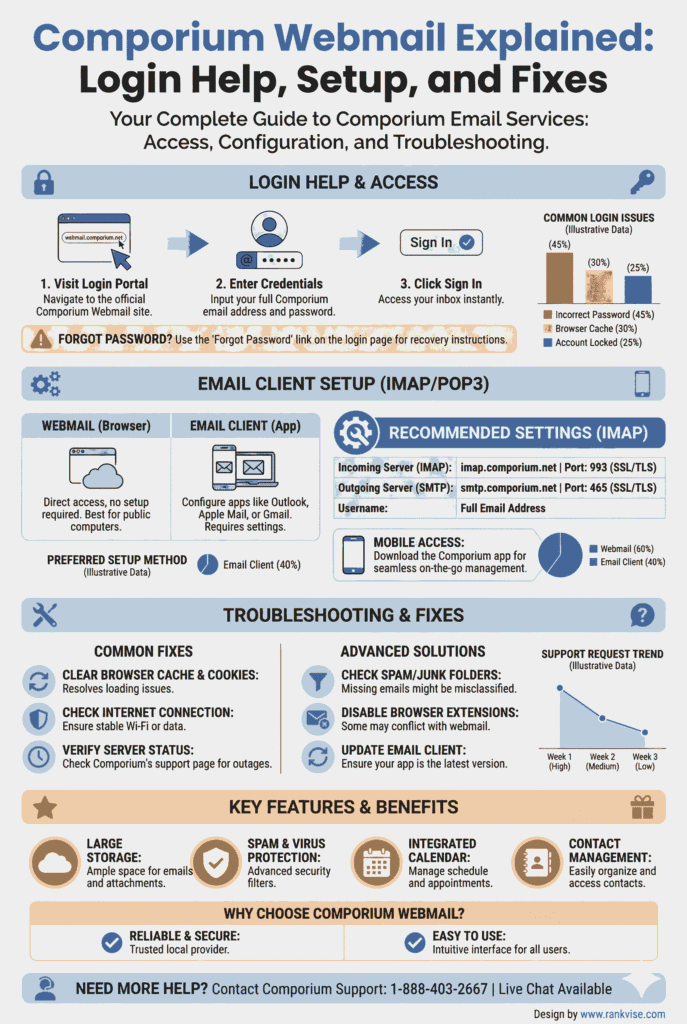
To set up comporium email on a third-party client, you need the correct server settings. Here is a quick reference table:
| Setting | IMAP (Recommended) | POP3 |
|---|---|---|
| Incoming Mail Server | imap.comporium.net | pop.comporium.net |
| Incoming Port | 993 (SSL) | 995 (SSL) |
| Outgoing Mail Server (SMTP) | smtp.comporium.net | smtp.comporium.net |
| Outgoing Port | 587 (TLS) | 587 (TLS) |
| Authentication | Full email address | Full email address |
| Encryption | SSL/TLS | SSL/TLS |
Note: Verify these settings directly with Comporium support, as server configurations can change over time.
IMAP keeps your emails synced across multiple devices. POP3 downloads messages to one device and may remove them from the server. For most users, IMAP offers a more flexible experience.
Adding Comporium Email to Your Smartphone
Setting up comporium mail on an iPhone or Android device takes just a few minutes.
On iPhone, go to Settings, then Mail, then Accounts, and select “Add Account.” Choose “Other” and enter your Comporium email credentials along with the IMAP settings listed above.
On Android, open the Gmail app or your preferred email client. Tap “Add Account,” select “Other,” and input the same server details. The app will verify your credentials and sync your inbox automatically.
Key Features of Comporium Webmail
Comporium webmail may not have the bells and whistles of Gmail or Outlook.com. However, it delivers solid functionality for everyday communication needs.
Here are the core features you can expect:
- Inbox management – Organize emails into folders, flag important messages, and search your mailbox efficiently.
- Contact storage – Save frequently used email addresses in a built-in address book for quick access.
- Attachment support – Send and receive files including documents, images, and PDFs within standard size limits.
- Spam filtering – Built-in filters help keep unwanted messages out of your primary inbox.
- Calendar integration – Some versions include a basic calendar tool for scheduling reminders and events.
- Secure access – SSL/TLS encryption protects your data during login and email transmission.
These features make comporium email a reliable choice for customers who value simplicity over complexity.
Troubleshooting Common Comporium Webmail Issues
Even the most stable email services encounter occasional hiccups. Here are the most frequent problems comporium webmail users face and how to resolve them.
Cannot Log In to Comporium Email
This is the most common complaint. Start by double-checking your email address and password for typos. Remember that passwords are case-sensitive.
If your credentials are correct but login still fails, clear your browser cache and cookies. Outdated cached data can interfere with the login process. Try a different browser or an incognito window to rule out extension conflicts.
If the problem persists, reset your password through the recovery option or contact Comporium customer support directly.
Emails Not Sending or Receiving
When outgoing emails get stuck, check your SMTP settings first. An incorrect outgoing server port or missing authentication can block delivery. Confirm that port 587 with TLS encryption is configured correctly.
For incoming email issues, verify your IMAP or POP3 settings. Also check whether your mailbox has reached its storage limit. A full inbox rejects new messages until you free up space.
Slow Webmail Performance
A sluggish webmail interface usually points to browser issues rather than server problems. Close unnecessary tabs, disable heavy browser extensions, and ensure your internet connection is stable.
Switching to a lighter browser or updating your current one can also improve performance. If slowness continues during specific hours, the issue may be temporary server congestion.
Spam Overload in Your Inbox
If spam filters are not catching junk emails, manually mark unwanted messages as spam. This trains the filter to recognize similar messages in the future. Avoid clicking links in suspicious emails, as this confirms your address is active.
You can also create custom filters or rules to block specific senders or domains automatically.
Comporium Webmail vs. Free Email Providers
You might wonder why you should use comporium webmail when free services like Gmail and Yahoo Mail exist. The answer depends on your priorities.
| Feature | Comporium Webmail | Gmail / Yahoo Mail |
|---|---|---|
| Cost | Included with internet plan | Free (ad-supported) |
| Ads | None | Yes |
| Storage | Limited (plan-dependent) | 15 GB+ |
| Privacy | ISP-managed, no ad tracking | Data used for targeted ads |
| Custom Domain | @comporium.net | @gmail.com / @yahoo.com |
| Integration | Basic | Extensive (Drive, Docs, etc.) |
Comporium email provides an ad-free, straightforward experience tied to your local internet service. Free providers offer more storage and integrations but monetize your data through advertising.
For users who prioritize a clean, private inbox without ads, comporium webmail holds genuine appeal.
Tips to Secure Your Comporium Email Account
Email security is not optional in today’s digital landscape. Protect your comporium email account with these practical steps.
- Use a strong password – Combine uppercase letters, lowercase letters, numbers, and symbols. Avoid common words or birthdays.
- Change your password regularly – Update it every three to six months to reduce risk exposure.
- Beware of phishing emails – Never click links or download attachments from unknown senders claiming to be Comporium.
- Log out on shared devices – Always sign out after checking email on public or shared computers.
- Keep your browser updated – Security patches in browser updates protect against known vulnerabilities.
- Monitor account activity – If you notice emails you did not send, change your password immediately and contact support.
Taking these precautions keeps your personal information and communications safe from unauthorized access.
When to Contact Comporium Customer Support
Some email issues require professional help. Reach out to Comporium customer support when you experience persistent login failures after password resets, suspect unauthorized access to your account, need help migrating emails to a new device, or encounter server-side errors that affect delivery.
Comporium’s support team can verify server status, reset account credentials, and troubleshoot configuration issues beyond what self-service options cover. You can reach them by phone, online chat, or through their official website’s support portal.
FAQs
Visit the official Comporium webmail portal in your browser, enter your full email address and password, then click the login button to access your inbox.
Yes, you can configure comporium email on any iPhone or Android device using IMAP or POP3 settings through your phone’s built-in mail app.
The outgoing mail server is typically smtp.comporium.net using port 587 with TLS encryption. Always confirm current settings with Comporium support.
Comporium webmail is included at no extra charge with an active Comporium internet subscription. There is no separate fee for the email service.
Click the “Forgot Password” link on the comporium webmail login page and follow the prompts to verify your identity and create a new password.