Skip to content
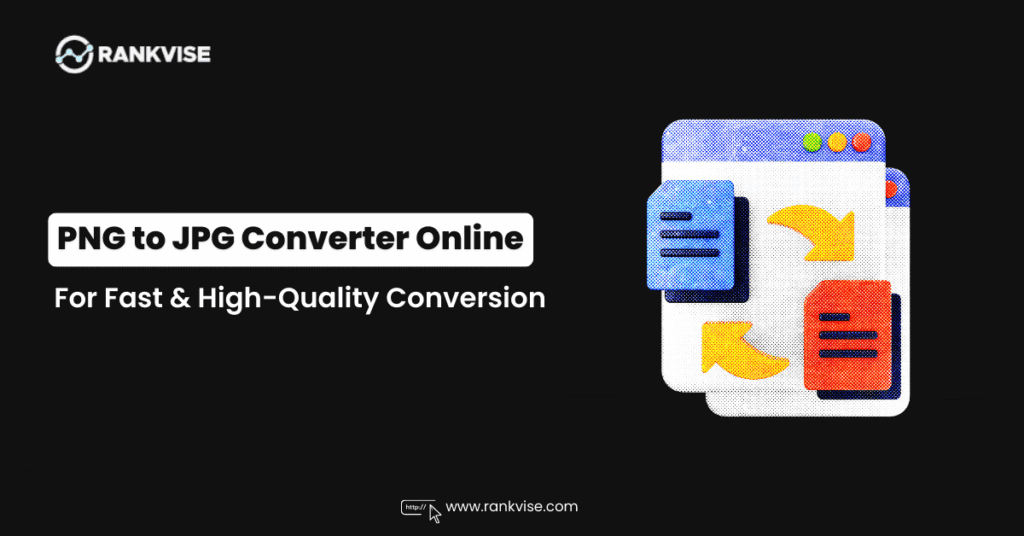
Need to convert your PNG files to JPG format quickly? Whether you’re optimizing images for your website, reducing file sizes for email attachments, or preparing graphics for social media, having a reliable online image converter can save you time and hassle.
PNG and JPG are two of the most popular image formats, each with distinct advantages. While PNG files offer transparency and lossless compression, JPG files are significantly smaller and more universally compatible—making them ideal for web use, sharing, and storage. The challenge? Finding a png to jpg converter that delivers high quality without requiring software downloads or complicated processes.
In this comprehensive guide, we’ve tested and reviewed the top 5 online converters that offer free, fast, and high-quality image conversion. Whether you’re a designer, blogger, or casual user, you’ll find the perfect tool to meet your needs.
Why Convert PNG to JPG?
Before diving into our top picks, let’s understand when and why you might need to convert images online:
File Size Reduction JPG files use lossy compression, which can reduce file sizes by up to 70% compared to PNG formats. This makes them perfect for web optimization, faster page loading times, and conserving storage space.
Universal Compatibility While PNG support is widespread, JPG remains the most universally compatible format across devices, platforms, and applications—from older email clients to legacy software systems.
Web Performance Optimization For websites and blogs, smaller JPG files mean faster load times, improved SEO rankings, and better user experience. Studies show that pages loading within 2 seconds have significantly lower bounce rates.
Social Media Requirements Many social media platforms compress PNG files automatically, often resulting in quality loss. Converting to JPG beforehand gives you better control over the final output.
Top 5 PNG to JPG Converters
1. CloudConvert – The Professional’s Choice
Best For: Bulk conversions and advanced customization
CloudConvert stands out as a powerful, feature-rich image format converter that goes beyond basic conversion. This platform supports over 200 formats and offers exceptional control over output quality.
Key Features:
- Batch processing of up to 25 files simultaneously on the free plan
- Advanced quality settings with adjustable compression levels
- API access for developers and automated workflows
- Cloud storage integration (Google Drive, Dropbox, OneDrive)
- Privacy-focused with automatic file deletion after 24 hours
Conversion Speed: Processes standard images in 3-5 seconds
File Size Limit: 1GB per file on the free tier
Pros:
- Professional-grade quality control
- Extensive format support beyond PNG and JPG
- Preserves EXIF metadata when needed
- No watermarks or branding on output files
Cons:
- Free plan limited to 25 conversions per day
- Interface may feel overwhelming for beginners
- Requires account creation for API access
Verdict: CloudConvert is ideal for professionals, designers, and businesses requiring consistent, high-quality conversions with advanced options. The free tier is generous for occasional use, while paid plans offer unlimited conversions starting at USD 9 per month.
2. Convertio – Simple, Fast, and User-Friendly
Best For: Quick, one-off conversions with minimal fuss
Convertio delivers exactly what its name promises—straightforward image conversion without complications. Its clean interface makes it the perfect choice for users who value simplicity without sacrificing quality.
Key Features:
- Drag-and-drop interface with instant preview
- Browser-based processing (no upload delays)
- Supports conversion between 300+ formats
- Real-time file size comparison
- Mobile-optimized for on-the-go conversions
Conversion Speed: Near-instant for files under 10MB
File Size Limit: 100MB for free users
Pros:
- Exceptionally intuitive interface
- No learning curve required
- Maintains excellent image quality
- Works seamlessly on mobile devices
Cons:
- Smaller file size limit compared to competitors
- Free version shows occasional ads
- Advanced settings require premium account
Verdict: Perfect for casual users and those needing occasional conversions. The streamlined experience makes Convertio one of the fastest ways to convert PNG to JPEG online without any technical knowledge.
3. ILoveIMG – Complete Image Toolkit
Best For: Users needing multiple image editing tools
ILoveIMG isn’t just a png to jpg converter—it’s a comprehensive image processing platform offering compression, resizing, cropping, and watermarking alongside format conversion.
Key Features:
- All-in-one image editing suite
- Batch conversion with no file quantity limits
- Quality presets optimized for web, print, and mobile
- Built-in compression optimization
- Desktop application available for offline use
Conversion Speed: 2-4 seconds per image
File Size Limit: Unlimited file sizes with registration
Pros:
- Multi-tool platform saves time on complex projects
- Excellent batch processing capabilities
- Consistent, reliable output quality
- Free desktop app for privacy-conscious users
Cons:
- Ads on the free version can be distracting
- Some advanced features locked behind paywall
- Processing speed varies during peak hours
Verdict: ILoveIMG excels when you need more than just basic conversion. It’s particularly valuable for content creators, marketers, and web developers who regularly perform multiple image operations.
4. Online-Convert.com – The Veteran Converter
Best For: Detailed customization and technical control
As one of the oldest online image converters still operating, Online-Convert.com has refined its service over years of user feedback. It offers granular control over conversion parameters that power users will appreciate.
Key Features:
- Detailed quality, resolution, and DPI adjustments
- Color filter and image enhancement options
- URL-based conversion (convert images directly from web links)
- Optional image resizing during conversion
- Preset profiles for specific use cases (web, email, print)
Conversion Speed: 5-8 seconds depending on settings
File Size Limit: 100MB per file
Pros:
- Exceptional control over output specifications
- Can convert images directly from URLs
- Includes basic editing features
- No registration required for standard use
Cons:
- Cluttered interface with aggressive advertising
- Slower processing compared to newer competitors
- Some features require premium subscription
Verdict: Best suited for users who know exactly what they need from their conversions. The technical options make it powerful, but beginners might find simpler alternatives more appealing.
5. TinyPNG/TinyJPG – Compression-Focused Conversion
Best For: Maximum file size reduction with minimal quality loss
While TinyPNG is primarily known for image compression, its conversion capabilities deserve recognition. This tool uses smart lossy compression techniques to deliver the smallest possible JPG files without visible quality degradation.
Key Features:
- Intelligent compression algorithm (reduces files by 60-80%)
- Side-by-side before/after comparison
- Processes up to 20 images at once
- Preserves aspect ratio and dimensions
- WordPress and Photoshop plugins available
Conversion Speed: 3-6 seconds per image
File Size Limit: 5MB per file on free plan
Pros:
- Unmatched compression efficiency
- Maintains excellent visual quality
- Perfect for web optimization
- Clean, distraction-free interface
Cons:
- Smaller file size limit than competitors
- Limited advanced settings
- Focused primarily on compression rather than conversion
Verdict: If your primary goal is creating the smallest possible JPG files for web use, TinyPNG delivers outstanding results. However, users needing larger file support or extensive customization should consider alternatives.
How to Choose the Right PNG to JPG Converter?
With so many options available, selecting the best free image conversion tool depends on your specific needs:
- For Occasional Personal Use Choose Convertio or TinyPNG for their simplicity and speed. Both offer hassle-free conversion without registration requirements.
- For Professional Projects CloudConvert provides the advanced controls and batch processing capabilities that professionals need for consistent, high-quality results.
- For Multi-Step Image Workflows ILoveIMG’s comprehensive toolkit eliminates the need to switch between multiple platforms when you need conversion plus editing.
- For Technical Specifications Online-Convert.com offers the granular control necessary when working with specific DPI, resolution, or color requirements.
- For Web Optimization TinyPNG delivers unbeatable file size reduction, making it ideal for bloggers, web developers, and anyone prioritizing page speed.
Quick Tips for High-Quality PNG to JPEG Conversion
Maximize your results with these expert recommendations:
- Understand Your Quality Needs For web images, 75-85% quality settings provide an optimal balance between file size and visual fidelity. Print materials require 90-95% quality to maintain clarity.
- Batch Process When Possible Converting multiple images simultaneously saves time and ensures consistent settings across all files. Most tools support batch uploads.
- Preview Before Downloading Always check the preview when available to ensure the conversion meets your quality standards before committing to the download.
- Consider Your Background Remember that JPG doesn’t support transparency. If your PNG has a transparent background, it will be converted to white (or another solid color). Plan accordingly.
- Maintain Original Files Keep your original PNG files as backups, especially for graphics you might need to edit later. JPG’s lossy compression means you lose data with each save.
- Check EXIF Data If you’re converting photos with important metadata (camera settings, GPS data, dates), verify that your chosen converter preserves or removes this information according to your needs.
Common Questions About Image Format Conversion
Is converting PNG to JPG lossy? Yes, JPG uses lossy compression, meaning some data is discarded to achieve smaller file sizes. However, at quality settings above 80%, the visual difference is imperceptible to most viewers.
Will I lose image quality? Some quality loss is inherent to JPG conversion, but modern online image converters use sophisticated algorithms to minimize visible degradation. The key is choosing appropriate quality settings for your intended use.
How much smaller will my files become? Typically, JPG files are 50-70% smaller than equivalent PNG files, though results vary based on image content and complexity. Images with many colors and details compress less than simple graphics.
Can I convert JPG back to PNG without quality loss? Once an image is converted to JPG and compressed, the lost data cannot be recovered. Converting back to PNG won’t restore the original quality—it will only change the container format.
Conclusion
Converting PNG images to JPG format doesn’t have to be complicated or expensive. The five tools reviewed here—CloudConvert, Convertio, ILoveIMG, Online-Convert.com, and TinyPNG—each offer unique strengths to accommodate different user needs and preferences.
For most users, Convertio and CloudConvert provide the best combination of quality, speed, and features. Professional users requiring advanced controls will appreciate CloudConvert’s extensive options, while casual users will love Convertio’s simplicity. Those focused on web optimization should definitely explore TinyPNG’s compression capabilities.
The best png to jpg converter is ultimately the one that fits seamlessly into your workflow and delivers the quality you need. Try several from our list to discover which interface and feature set works best for your specific requirements.