You see a great Instagram story and want to share it with your own audience. Maybe someone tagged your brand. Maybe you want to reshare your own past content. Either way, knowing how to repost an Instagram story saves time and boosts your visibility.
- Reshare archived stories: Profile > Menu > Archive > Stories Archive, select story, tap Share, edit, and post. Enable automatic archiving.
- Repost stories that mention you via Direct Messages: tap Add This to Your Story, customize, and publish within 24 hours.
- For untagged stories, screen record, trim, upload from camera roll, and always ask permission while crediting the original creator.
- Share public feed posts to your story with the paper airplane icon then Add Post to Your Story to link viewers back.
- Use third-party repost apps cautiously: only public accounts, visible attribution, check permissions, and avoid apps that request your password.
Instagram has evolved its sharing features significantly. What once required third-party apps now works natively in many situations. But the method you use depends on the scenario — were you tagged, is it your own story, or is it someone else’s content entirely?
This guide walks you through every method step by step. Whether you manage a business account or a personal profile, you will find the right approach here.
Why Reposting Instagram Stories Matters for Engagement?
Resharing stories is not just about convenience. It is a smart content strategy. Reposting builds community, amplifies user-generated content, and keeps your story feed active without creating everything from scratch.
Brands that reshare customer stories show social proof in real time. When a customer tags your business in their story and you repost it, you validate their experience publicly. That small gesture encourages more people to tag you, creating a cycle of organic promotion.
Reposting also helps you maximize content lifespan. Instagram stories disappear after 24 hours. Sharing them again through your own story or saving them to highlights keeps valuable content visible for longer.
Method 1: Repost a Story You Were Tagged In
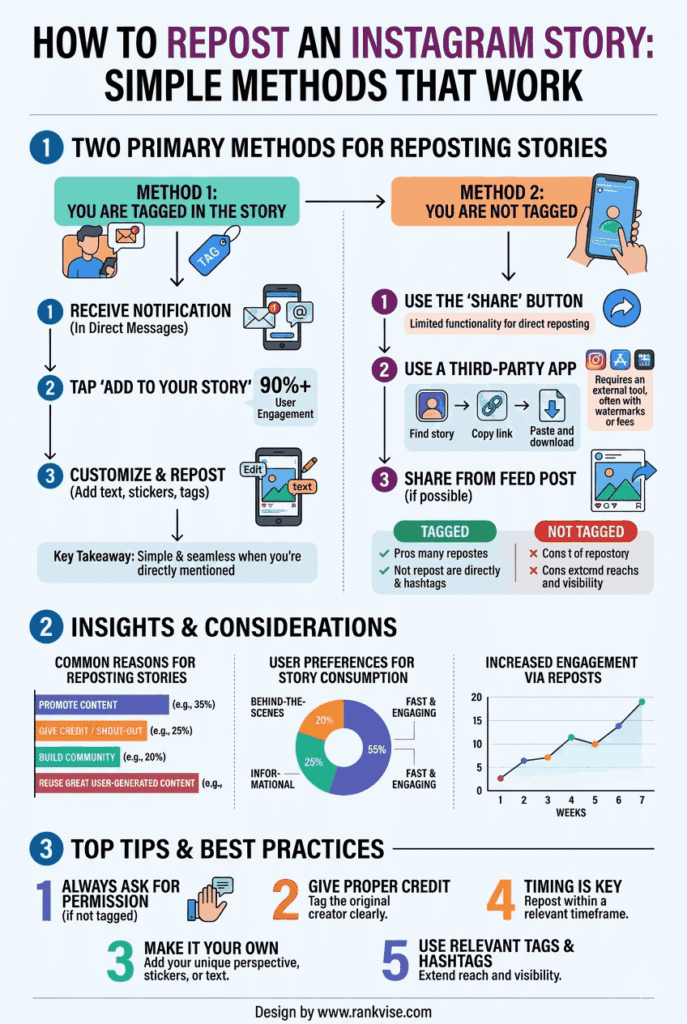
This is the most common and easiest way to share an Instagram story. When someone mentions your account in their story, Instagram sends you a direct notification.
Follow these steps to reshare a tagged story:
- Open your Instagram Direct Messages — You will see a notification saying someone mentioned you in their story.
- Tap the message to view the story.
- Tap “Add This to Your Story” — Instagram opens the story editor with the original content embedded.
- Customize the post — Add stickers, text, music, or GIF overlays to make it feel personal.
- Tap “Your Story” to publish it to your audience.
The original creator’s username stays attached automatically. This gives proper credit and allows your viewers to visit their profile. You must reshare within 24 hours before the original story expires.
Method 2: Repost Your Own Archived Stories
Want to reshare a story you posted days, weeks, or even months ago? Instagram saves your past stories in a private archive. You can access and repost them anytime.
Here is how to find and reshare your own stories from the archive:
- Go to your Instagram profile and tap the three-line menu icon in the top right corner.
- Tap “Archive” and select “Stories Archive” from the dropdown.
- Scroll through your past stories and tap the one you want to reshare.
- Tap “Share” at the bottom of the screen.
- Edit if needed and tap “Your Story” to publish.
This method works perfectly for reposting seasonal content, throwback moments, or evergreen posts that performed well the first time. Make sure your archive setting is turned on under Settings to save stories automatically.
Method 3: Repost Someone Else’s Story Using a Screen Recording
Sometimes you want to share a story you were not tagged in. Instagram does not offer a native reshare button for untagged stories. In these cases, a screen recording captures the content.
Follow these steps carefully:
- Open the story you want to share.
- Start your phone’s screen recording — Swipe into your control center on iPhone or pull down the notification panel on Android.
- Record the story as it plays.
- Trim the recording to remove anything before or after the actual story content.
- Upload the recording as a new story from your camera roll.
- Credit the original creator — Tag their username or add a text overlay with their handle.
Always ask for permission before reposting someone else’s content this way. Sharing without credit or consent can damage relationships and violate Instagram’s community guidelines.
Method 4: Use Instagram’s Native Reshare for Feed Posts to Stories
Instagram allows you to share any public feed post directly to your story. This is not technically a story repost, but it achieves a similar goal — sharing someone else’s content with your audience through stories.
Here is the process:
- Find the feed post you want to share.
- Tap the paper airplane icon beneath the post.
- Select “Add Post to Your Story” from the options.
- Customize the story with stickers, text, or drawings.
- Publish to your story by tapping “Your Story.”
The original post appears as a clickable sticker in your story. Viewers can tap it to visit the original post and the creator’s profile. This method respects the original creator’s content and drives engagement back to their account.
Method 5: Use Third-Party Repost Apps
When native Instagram features do not cover your needs, third-party apps fill the gap. Several apps specialize in reposting Instagram content, including stories.
Popular repost apps include:
- Repost for Instagram — Simple interface that lets you reshare stories and posts with built-in attribution.
- StorySaver — Downloads stories from public accounts so you can repost them later.
- Reposter — Offers quick resharing with automatic credit overlays.
When using any third-party app, keep these points in mind. Only repost content from public accounts. Always credit the original creator visibly. Review the app’s permissions carefully before granting access to your Instagram account. Avoid apps that ask for your password — legitimate tools use Instagram’s official API.
Etiquette and Best Practices for Reposting Stories
Reposting stories involves someone else’s creative work. Handling it respectfully protects your reputation and strengthens your relationships within the Instagram community.
Follow these best practices every time you reshare:
- Always credit the original creator by tagging their username or mentioning their handle in the story.
- Ask permission first when sharing content you were not tagged in, especially for business use.
- Do not alter the original message — Avoid cropping out watermarks, usernames, or context.
- Add value when resharing — Include a personal comment, reaction, or context for your audience.
- Respect privacy settings — If an account is private, do not screenshot or record their stories to repost publicly.
Brands should also consider creating a simple user-generated content policy. Let your audience know you may reshare tagged stories. This sets expectations and encourages more people to tag you organically.
Troubleshooting Common Reposting Issues
Even with clear steps, things occasionally go wrong. Here are quick fixes for the most common problems people face when trying to repost an Instagram story.
You cannot see the “Add to Your Story” option — This happens when the original account has disabled resharing in their privacy settings. You cannot override this. Respect their preference.
The tagged story notification disappeared — Check your message requests folder. Mentions from accounts you do not follow sometimes land there instead of your main inbox.
The reshared story looks blurry or cropped — Instagram compresses media during the reshare process. For better quality, ask the creator to send you the original file directly.
Third-party apps stopped working — Instagram frequently updates its API restrictions. If an app breaks, check for updates or switch to a currently supported alternative.
FAQs
Instagram does not offer a native button for this. You can use a screen recording or a third-party app, but always ask the creator for permission and give visible credit.
You can only reshare your own expired stories from the Stories Archive. Go to your profile menu, tap Archive, select the story, and tap Share to repost it to your current story.
The original poster may have disabled the resharing option in their privacy settings. If they allow resharing, you need to be tagged in the story to see the native repost button.
Yes, when you reshare a story you were tagged in using Instagram’s native feature, the original creator receives a notification that you shared their content.
Apps like Repost for Instagram and StorySaver are popular choices. They allow easy resharing with attribution. Always verify app permissions and avoid tools that request your Instagram password.