HEIC stands for High Efficiency Image Container. Apple introduced it as the default photo format for iPhones and iPads starting with iOS 11. It compresses images to roughly half the size of a JPEG without losing quality.
- Convert HEIC to PDF for universal compatibility; PDF opens on any device and supports multi-page, printing, password protection.
- On iPhone or iPad use Files app "Create PDF" or build a Shortcuts automation to convert and combine photos into a multi-page PDF.
- Windows needs HEIF extensions to view HEIC; use reputable online converters or desktop software for batch and local, private conversions.
- On Mac use Preview to export single or multiple HEIC files as PDF, or Automator for automated bulk conversions.
- Keep original resolution, choose correct page size, verify orientation, and prefer offline tools for sensitive images; select trusted online services.
That sounds great on paper. But the real-world experience tells a different story. When you try to email a HEIC file to a Windows user, they often cannot open it. Upload it to a business portal, and you may get an error. Share it in a team chat, and half the recipients see a blank thumbnail.
This incompatibility is why converting heic to pdf has become such a common task. PDF is the universal document format. Every device, operating system, and browser can open a PDF without additional software.
Why Convert HEIC to PDF Instead of JPEG?
Most people think of JPEG first when they want to change an image format. However, PDF offers several advantages over JPEG for specific use cases. Understanding the difference helps you pick the right output format every time.
| Feature | JPEG | |
|---|---|---|
| Multi-page support | Yes — combine many images into one file | No — one image per file |
| Print consistency | Maintains exact layout across devices | May vary slightly |
| Password protection | Supported natively | Not supported |
| Text overlay / annotations | Easy to add | Requires editing software |
| Professional appearance | Preferred for business documents | Casual sharing |
If you need to submit scanned receipts, insurance photos, real estate images, or identification documents, PDF is the expected format. Converting heic images to pdf keeps the quality high while making the file universally accessible.
Who Needs to Convert HEIC Files to PDF?
This task is not limited to tech professionals. A wide range of people run into HEIC compatibility issues every single day.
- Real estate agents who photograph properties on an iPhone and need to attach images to listing documents.
- Insurance adjusters who capture claim evidence and must submit it through portals that accept only PDF.
- Students who scan handwritten notes using an iPhone camera and want to compile them into a single study document.
- Small business owners who photograph receipts for expense reports and bookkeeping.
- Legal professionals who need photo evidence packaged in a secure, non-editable format.
In each scenario, turning heic photos into pdf files removes friction and speeds up the workflow.
How to Convert HEIC to PDF on iPhone and iPad?
Apple devices created the HEIC format, so they also offer built-in ways to handle the conversion. You do not need to install a third-party app for basic tasks.
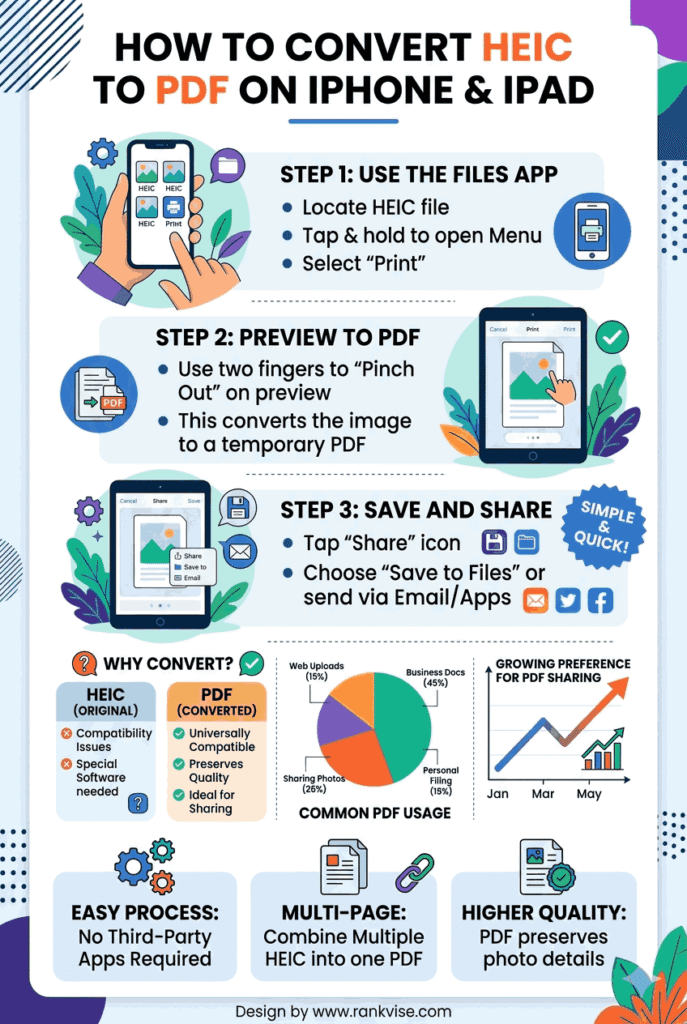
Use the Files App and Print Trick
- Open the Photos app and select the HEIC image you want to convert.
- Tap the Share button and choose Save to Files.
- Open the Files app and locate your saved image.
- Long-press the image, then tap Quick Actions and select Create PDF.
This method works natively on iOS 16 and later. It converts a single heic file to pdf in seconds. For multiple images, select them all before creating the PDF and iOS will combine them into one multi-page document.
Use the Apple Shortcuts App
The Shortcuts app allows you to build a one-tap automation. Create a shortcut that accepts photos as input, converts them to PDF, and saves the result to a folder. Once set up, you can convert heic to pdf directly from the share sheet without repeating manual steps.
How to Convert HEIC to PDF on Windows
Windows does not natively support HEIC viewing without the HEIF Image Extensions from the Microsoft Store. Converting these files to PDF requires a slightly different approach.
Use a Free Online Converter
Several reputable online tools handle this conversion reliably. Adobe Acrobat’s free online converter, ILovePDF, and Convertio are popular choices. The process is straightforward across all of them.
- Visit the converter website.
- Upload your HEIC file or drag it into the browser window.
- Select PDF as the output format.
- Click Convert and download the result.
Online heic to pdf converters work well for occasional use. They require no software installation and run entirely in the browser. Most tools delete uploaded files within a few hours for privacy.
Use Desktop Software
If you handle conversions frequently or work with sensitive documents, desktop software is a better choice. Tools like SwifDoo PDF, WPS Office, and Adobe Acrobat Pro offer batch conversion. They process files locally on your machine, keeping everything private.
Batch processing is especially useful when you need to convert multiple heic files to pdf at once. Select an entire folder of images and export them as a single multi-page PDF or individual files.
How to Convert HEIC to PDF on Mac
Mac users have the smoothest experience thanks to native Apple ecosystem support.
Use Preview
- Open the HEIC image in Preview.
- Click File in the menu bar, then select Export as PDF.
- Choose a save location and click Save.
Preview also supports opening multiple images. Select several HEIC files, open them in one Preview window, and then export the entire batch as a single PDF document. This makes it easy to compile photo collections into one shareable file.
Use Automator for Bulk Conversion
Automator is a built-in Mac tool that automates repetitive tasks. You can create a workflow that watches a specific folder, automatically converts any new HEIC file to PDF, and moves the result to an output folder. This is ideal for professionals who process high volumes of image files regularly.
Best Free Online Tools for HEIC to PDF Conversion
Not everyone wants to install software. Free online converters offer a quick solution. Here are the most reliable options available right now.
- Adobe Acrobat Online — Trusted brand, clean interface, converts one file at a time on the free tier.
- ILovePDF — Supports batch uploads and merging multiple images into one PDF.
- Convertio — Handles over 300 formats, including heic to pdf, with a simple drag-and-drop interface.
- CloudConvert — Offers API access for developers who want to automate the conversion in their own apps.
- FreeConvert — Provides advanced settings like DPI adjustment and page size selection.
When choosing an online tool, check its privacy policy. Reputable services delete files automatically after processing. Avoid unknown converters that lack clear data handling policies, especially when working with personal or business documents.
Tips for Getting the Best Quality After Conversion
Converting heic photos to pdf files can sometimes introduce quality issues. Follow these tips to avoid common problems.
Maintain original resolution. Many converters offer a “compress” option by default. Disable it when you need the highest image quality, such as for print-ready documents or legal evidence.
Choose the right page size. Match the PDF page size to your intended use. A4 works for most business documents. Letter size is standard in the United States. Custom sizing helps when the output needs to match specific templates.
Use multi-page PDFs wisely. Combining dozens of images into a single PDF creates large files. If file size matters, split the document into logical sections or apply moderate compression after conversion.
Check orientation. HEIC files from iPhones sometimes carry orientation metadata that converters misread. After conversion, open the PDF and verify that all images display correctly. Rotate any misaligned pages before sharing.
Privacy and Security Considerations
Uploading personal photos to an online converter raises valid privacy concerns. Sensitive images like identification documents, medical records, or financial receipts deserve extra caution.
For maximum security, use offline desktop software. Files never leave your computer. If you must use an online tool, choose services with documented encryption and automatic file deletion policies. Adobe and CloudConvert both encrypt uploads and purge files within hours.
Avoid sending sensitive heic files through unknown free converters found through random search results. Stick with established, well-reviewed tools that have transparent privacy practices.
Common Errors and How to Fix Them
Even with good tools, conversion issues happen. Here are the most frequent problems and their solutions.
“Unsupported file format” error. Some converters expect the .heic extension in lowercase. Rename your file if necessary. Also confirm that the file is genuinely HEIC and not a renamed JPEG.
Blurry output. This usually happens when the converter applies aggressive compression. Re-run the conversion with quality set to maximum or 100 percent.
Black or rotated images. HEIC metadata can confuse certain tools. Try a different converter or manually adjust the orientation after export.
File too large to upload. Some free tools limit uploads to 10–50 MB. For larger files, use desktop software or a premium tier of an online service.
When to Use HEIC to PDF Conversion in Business Workflows
Businesses benefit from standardizing on PDF for document management. Here are practical scenarios where this conversion adds real value.
Construction teams photograph job sites daily. Converting those photos to PDF creates organized daily reports. HR departments receive identification documents from new hires photographed on iPhones. Converting them to PDF ensures compatibility with applicant tracking systems.
Marketing teams compile product photography for vendor submissions. A multi-page PDF presents a polished, professional package. In each case, converting heic images to pdf format removes compatibility barriers and streamlines collaboration.
FAQs
Yes. Online tools like Adobe Acrobat Online, ILovePDF, and Convertio let you convert heic to pdf directly in your browser at no cost.
Not if you choose the right settings. Disable compression during conversion and select maximum quality to preserve the original resolution and detail.
Absolutely. Most converters and built-in tools like Apple Preview and ILovePDF allow you to merge several heic images into a single multi-page pdf.
Reputable services like Adobe and CloudConvert use encryption and auto-delete files after processing. Avoid unknown tools for sensitive documents and use offline software instead.
Windows requires the HEIF Image Extensions from the Microsoft Store to view heic files. Without this extension, the operating system cannot decode the Apple-native format.