Skip to content
Not every opinion needs your name attached to it. Whether you are seeking advice in a support group, sharing honest feedback, or raising a concern without professional backlash, knowing how to post anonymously on Facebook gives you that freedom.
- Anonymous posting works only in groups and requires the group admin to enable the feature.
- Your identity stays hidden from members but is visible to admins, moderators, and Facebook.
- Anonymous comments only occur within your own anonymous post thread, not on others' posts.
- Disabling anonymous posting deletes all anonymous posts permanently, so save any important content first.
Facebook introduced anonymous posting for groups several years ago. Yet most users still do not know it exists or how it actually works. The feature is straightforward once you understand its rules and limitations.
This guide walks you through every method, platform, and scenario. You will learn how to create anonymous posts, comment without revealing your identity, and manage anonymous posting as an admin. More importantly, you will understand what “anonymous” truly means on Facebook and where the boundaries lie.
Why Would Anyone Want to Post Anonymously on Facebook?
Privacy on social media is no longer optional. A 2025 Pew Research survey found that 79% of adults expressed concern about how their online data is used. Anonymous posting on Facebook addresses a real and growing need.
Consider these everyday scenarios where hiding your identity makes sense:
- A new parent asking about postpartum struggles in a parenting group
- An employee seeking career advice without alerting current coworkers
- A patient discussing health symptoms in a medical support community
- A community member raising concerns about local issues without fear of retaliation
- A student asking sensitive academic questions in a university group
The motivation is rarely about deception. It is about feeling safe enough to be honest. Facebook recognized this and built the anonymous post feature specifically for group environments where vulnerability matters.
How to Post Anonymously on Facebook Groups (Step-by-Step)
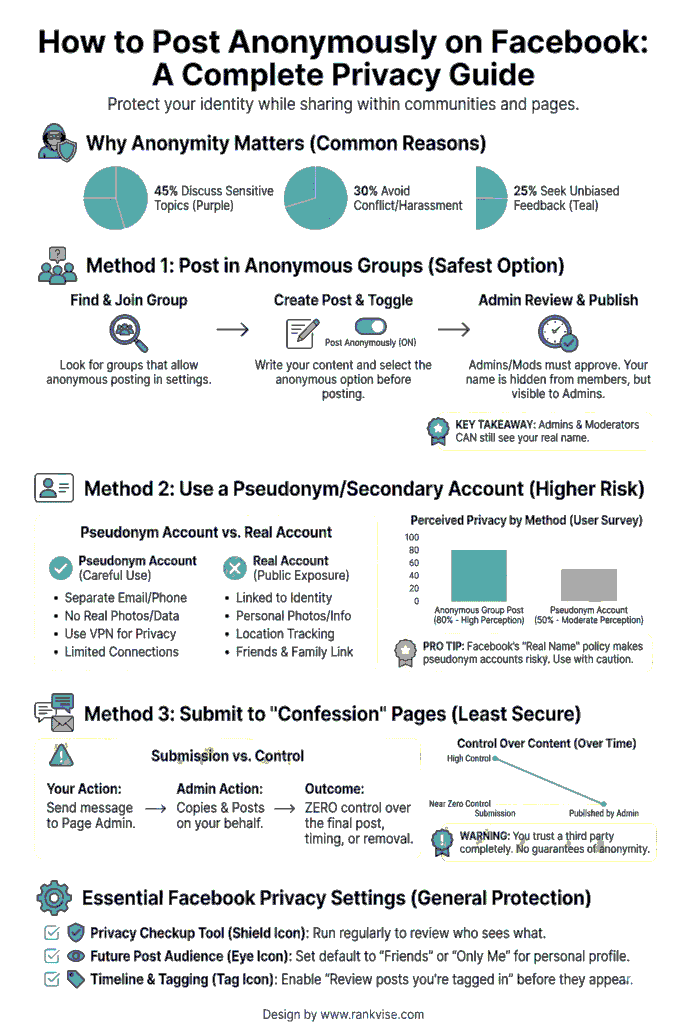
Anonymous posting on Facebook is exclusive to groups. You cannot post anonymously on your personal timeline, business pages, or Marketplace. The group admin must first enable the feature before members can use it.
Here is how the process works across devices.
On Desktop (Browser)
- Log into Facebook and navigate to the group where you want to post.
- Click the “Write something…” text box at the top of the group feed.
- Look for the “Anonymous Post” toggle directly below the text box.
- Switch the toggle on and compose your message normally.
- Add any images, polls, or attachments you need.
- Click “Submit” to send the post for review or publishing.
If you do not see the anonymous post option, the group admin has not enabled it. No workaround exists for this limitation.
On Android Devices
- Open the Facebook app and tap the menu icon (three horizontal lines).
- Select “Groups” and open the group you want to post in.
- Tap the “Write something…” field to start a new post.
- Look for “Post anonymously” toggle or an “Anonymous Post” label beneath the text box.
- Tap to enable it and acknowledge the privacy pop-up that appears.
- Write your post, attach media if needed, and tap “Post” or “Submit.”
On iPhone and iPad
The process mirrors Android with minor interface differences. Open the Facebook app, navigate to your group, and tap the compose field. The anonymous toggle appears below the text box. Tap it, confirm the prompt, write your message, and submit.
One important tip: keep your Facebook app updated to the latest version. Older versions sometimes hide or fail to display the anonymous posting toggle even when the group supports it.
What Happens After You Submit an Anonymous Post?
Your post will display differently depending on the group type. Understanding this distinction helps you set the right expectations.
| Group Type | Your Post Appears As | Who Can See Your Identity |
|---|---|---|
| Private Group | “Anonymous Member” | Admins, moderators, and Facebook |
| Public Group | “Anonymous Participant” | Admins, moderators, and Facebook |
Other group members cannot click on your anonymous label to reveal your profile. Your name, photo, and profile link remain completely hidden from fellow members. However, your identity is never hidden from people who manage the group.
Some groups also require admin approval before anonymous posts go live. This means your post may not appear immediately. Approval times vary based on how active the admin team is.
How to Comment Anonymously on Facebook
This is where most users get confused. Facebook does not allow fully anonymous commenting on other people’s posts. The anonymous comment feature works only within the context of your own anonymous posts.
Here is how it works in practice:
- You create an anonymous post in a group.
- Other members comment on your post using their real identities.
- When you reply to those comments, your replies appear as “Anonymous Member.”
- Your anonymous identity is maintained throughout that specific post thread.
If you navigate to someone else’s post in the same group, you cannot comment anonymously there. Facebook restricts this intentionally to prevent widespread misuse while still letting anonymous posters engage in their own discussions.
Quick Reference: Where Anonymity Works and Where It Does Not
| Action | Anonymity Available? |
|---|---|
| Posting in an enabled group | Yes |
| Commenting on your own anonymous post | Yes |
| Commenting on someone else’s post | No |
| Posting on personal timelines | No |
| Posting on business pages | No |
| Sending messages in group chats | No |
| Posting in Facebook Marketplace | No |
This table should clear up the most common misconceptions about anonymous activity on Facebook.
Can Anyone Find Out Who Posted Anonymously?
Regular group members cannot identify anonymous posters. Facebook designed the feature to protect the poster’s identity from the general membership. No third-party tool, browser extension, or workaround can reveal who made an anonymous post.
However, group admins and moderators have full visibility. They can see the poster’s real name and profile through the admin tools panel. Facebook also retains this information for enforcing Community Standards.
This means anonymous posting offers social anonymity, not absolute anonymity. If you post something that violates group rules or Facebook policies, admins can take action against your account. Law enforcement can also request identity information from Meta through legal channels.
For users who need stronger privacy protections, consider these additional steps:
- Review your Facebook privacy settings and limit profile visibility
- Use a VPN to mask your IP address while browsing
- Avoid sharing uniquely identifiable details in anonymous posts
- Disable location services for the Facebook app on your phone
These precautions add meaningful layers of protection beyond what the anonymous post feature provides on its own.
How Admins Can Enable Anonymous Posting in Facebook Groups
If you manage a Facebook group and want to give members the option to hide their identity on Facebook, enabling anonymous posting takes less than a minute.
- Open your group and tap the three-dot menu icon (or “Admin Tools” on desktop).
- Select “Edit Group Settings” or navigate to the “Features” section.
- Find “Anonymous Posting” and toggle it to the ON position.
- Click “Save” to apply changes immediately.
Once enabled, every member will see the anonymous posting toggle when creating new posts. You still retain full visibility into who posts what, so moderation capabilities remain intact.
When Should Admins Enable This Feature?
Anonymous posting works best in groups centered around sensitive topics. Mental health communities, medical support groups, workplace advice forums, and parenting groups benefit significantly. It encourages participation from members who might otherwise stay silent.
For groups focused on networking, buying and selling, or professional collaboration, anonymous posting may create more problems than it solves. Use your judgment based on the group’s purpose.
How Admins Can Disable Anonymous Posting
Turning off anonymous posting follows the same path. Navigate to Admin Tools, find the Anonymous Posting toggle, switch it OFF, and save.
Here is the critical detail most admins miss: disabling this feature permanently deletes every anonymous post ever made in the group. Facebook does not archive them. They vanish without warning or recovery options.
Before flipping that switch, screenshot or save any valuable anonymous posts. Once deleted, neither you nor Facebook can restore them.
Limitations You Should Know Before Posting Anonymously
Facebook’s anonymous posting feature is useful but far from perfect. Knowing its boundaries prevents unpleasant surprises.
The feature only exists within groups. Personal profiles, pages, stories, reels, and Marketplace listings offer zero anonymity options. Even within groups, the admin must explicitly enable the feature first.
Your anonymity has a ceiling. Admins, moderators, and Meta always know your identity. Facebook also logs metadata like your IP address and device information. Complete invisibility does not exist on this platform.
Content moderation still applies. Anonymous posts must follow both group rules and Facebook Community Standards. Posting harmful, abusive, or illegal content anonymously does not shield you from consequences.
Editing anonymous posts may require re-approval in some groups. If the group has post approval enabled, your edit goes back into the moderation queue. This can temporarily hide your post from the group feed.
Alternative Ways to Protect Your Privacy on Facebook
If anonymous group posting does not cover your needs, several other facebook privacy settings can reduce your digital footprint.
Adjust your profile visibility so only friends can see your posts, photos, and personal details. This limits what strangers learn about you even if they find your profile.
Review your activity log regularly. Facebook tracks every like, comment, and share you make. You can delete or hide past activity that no longer represents you.
Limit ad tracking through Facebook’s off-platform activity settings. This stops advertisers from building a profile based on your browsing habits outside Facebook.
Turn off facial recognition if the option is available in your region. This prevents Facebook from automatically tagging you in photos uploaded by others.
Use two-factor authentication to secure your account. Privacy means little if someone gains unauthorized access to your profile.
FAQs
No. Anonymous posting is exclusively available within Facebook groups where the admin has enabled the feature. Personal timelines and pages do not support it.
Anonymous posts in private groups do not appear in Facebook or Google search results. Posts in public groups may be indexed, but your identity remains hidden from non-admin viewers.
Yes. Group admins and moderators can always view the real identity behind anonymous posts through their admin dashboard, even though other members cannot.
Facebook does not impose a specific limit on anonymous posts per user. However, group admins may set their own rules about posting frequency, and excessive posting could trigger moderation review.
Deleting your anonymous post removes it from the group feed, but Facebook may retain metadata and identity records according to its data retention policies. Admins lose access to the post once deleted.