Skip to content
You crafted the perfect Facebook post. The content is valuable, the image is stunning, and your message hits home. But when you check later, nobody shared it. The problem? Your post might not be shareable at all.
- Set post privacy to Public so the share button appears and anyone can spread your content beyond your friends.
- Create high-value content with strong opening lines, compelling visuals, and clear reasons for people to share it.
- Avoid sharing sensitive personal information publicly and consider separate profiles or pages for professional reach.
Making a Facebook post shareable is not automatic. It requires the right privacy settings. This guide walks you through every step, explains why shareability matters, and shows you how to maximize your content’s reach.
Why Facebook Post Shareability Matters
Shares are the lifeblood of organic reach on Facebook. When someone shares your content, it appears in their friends’ feeds. This creates a ripple effect that algorithms alone cannot match.
Each share introduces your message to a new audience. These are people who trust the person sharing your content. That trust transfers to you, making shared content more valuable than paid ads in many cases.
For businesses, shareable posts drive brand awareness without extra spending. For creators, shares mean more followers and engagement. For causes, shares amplify important messages to the people who need to hear them.
The difference between a post that gets 50 views and one that reaches 5,000 often comes down to shareability settings.
Understanding Facebook Privacy Settings and Sharing
Facebook gives users control over who sees their content through privacy settings. These settings directly impact whether others can share your posts.
The platform offers several privacy levels:
| Privacy Setting | Who Can See | Can Be Shared? |
|---|---|---|
| Public | Everyone on and off Facebook | Yes |
| Friends | Your Facebook friends only | No |
| Friends except | Friends minus selected people | No |
| Specific friends | Only people you choose | No |
| Only me | Just you | No |
Only posts set to Public display a share button. This is Facebook’s way of protecting user privacy. If your post reaches only friends, the platform prevents those friends from spreading it beyond your intended audience.
Understanding this connection between privacy and shareability is crucial. You cannot make a private post shareable without changing its privacy setting.
How to Make a Facebook Post Shareable on Desktop
Desktop users have straightforward access to privacy controls. The process takes less than a minute once you know where to look.
For new posts:
- Open Facebook and start creating your post in the status box.
- Look for the privacy dropdown below your name (it shows an icon and text like “Friends” or “Public”).
- Click the dropdown menu to reveal all privacy options.
- Select “Public” from the list.
- Finish writing your post and click “Post” to publish.
For existing posts:
- Navigate to the post you want to make shareable.
- Click the three dots in the top right corner of the post.
- Select “Edit privacy” from the dropdown menu.
- Change the setting to “Public” in the popup window.
- Click “Save” to apply the new privacy setting.
The share button appears immediately after you change the privacy to Public. Your friends and followers can now spread your content across their networks.
How to Enable Facebook Post Sharing on Mobile
Mobile devices handle most Facebook activity today. The process on smartphones mirrors desktop steps but with touch-friendly controls.
Creating a shareable post on mobile:
- Open the Facebook app on your iPhone or Android device.
- Tap “What’s on your mind?” to start a new post.
- Look for the privacy setting below your name (shows as “Friends,” “Public,” etc.).
- Tap the privacy button to open the audience selector.
- Choose “Public” from the options.
- Complete your post and tap “Post” to share it.
Making existing mobile posts shareable:
- Find the post you want to edit in your feed or profile.
- Tap the three dots in the upper right corner of the post.
- Select “Edit privacy” from the menu.
- Choose “Public” in the audience selector.
- Tap “Done” or “Save” to confirm the change.
The mobile interface makes privacy changes quick and intuitive. You can update dozens of posts in minutes if needed.
Common Mistakes That Block Facebook Post Sharing
Even experienced users make errors that prevent sharing. Recognizing these mistakes helps you avoid them.
Using the wrong privacy setting is the most common error. Many users default to “Friends” for personal comfort. However, this blocks all sharing options. If you want reach, you must accept public visibility.
Forgetting to check default settings causes repeat issues. Facebook remembers your last used privacy setting for new posts. If you recently posted something private, your next post will default to that same setting.
Assuming everyone can see public posts is another misconception. While public posts are shareable, Facebook’s algorithm still limits organic reach. Shareability enables virality but does not guarantee it.
Not verifying the change took effect leads to frustration. After editing privacy, always check that the share button appears. Refresh the page if you do not see it immediately.
Strategic Tips for Creating Shareable Facebook Content
Enabling the share button is just the first step. Creating content people actually want to share requires strategy.
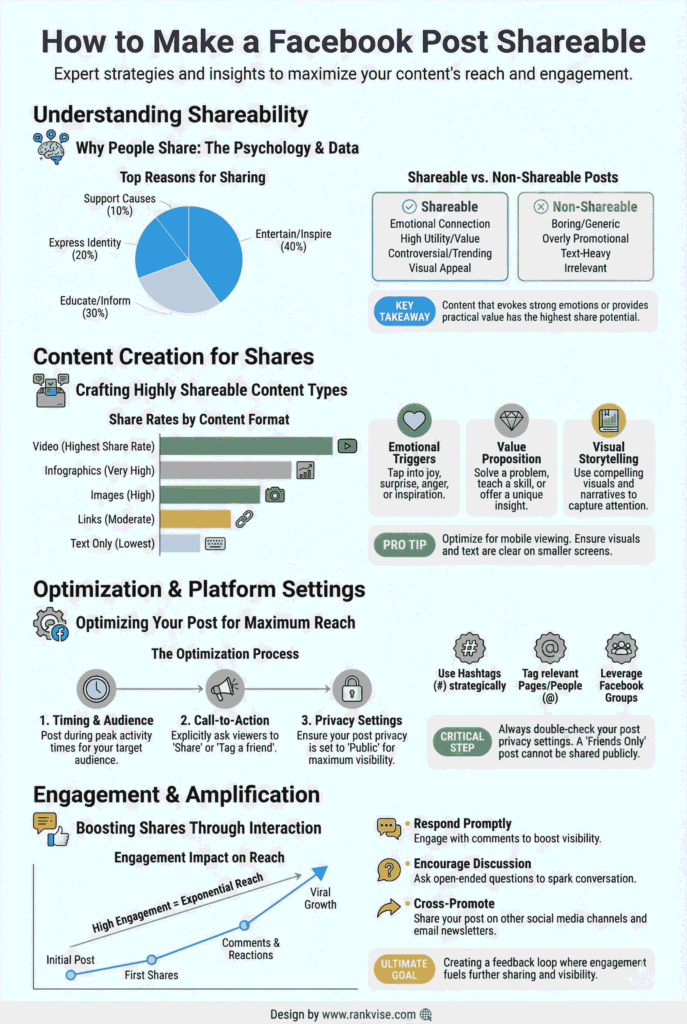
Write Compelling Headlines
Your opening line determines whether people read further. Make it specific, intriguing, or emotionally resonant. Generic statements get scrolled past without a second thought.
Ask questions that make people curious. Share surprising statistics. Make bold claims that demand attention. The first sentence should hook readers instantly.
Use High-Quality Visuals
Posts with images receive significantly more engagement than text-only updates. Photos, infographics, and videos stop the scroll and invite interaction.
Choose visuals that tell a story or convey emotion. Avoid stock photos that feel generic or corporate. Authentic, relatable images perform better than polished but impersonal ones.
Add Clear Value
People share content that makes them look good, feel good, or helps others. Educational posts teach something useful. Inspirational posts uplift spirits. Entertaining posts bring joy.
Before publishing, ask yourself why someone would share this. If you cannot answer clearly, revise your content until the value becomes obvious.
Include a Call to Action
Tell people explicitly that you want them to share. Phrases like “Share if you agree” or “Tag someone who needs this” give permission and direction.
Make sharing feel purposeful rather than random. Connect the share action to a cause, goal, or community benefit.
How Business Pages Can Maximize Post Shareability
Business pages face additional considerations around shareable content. Organic reach has declined, making shares even more critical for growth.
Post consistently during peak engagement times. Data shows that posts published when your audience is most active receive more initial engagement. This early momentum increases the likelihood of shares.
Encourage employee advocacy by making it easy for team members to share company content. Provide them with pre-written captions and clear sharing guidelines.
Run share-incentive campaigns where sharing enters people into contests or unlocks exclusive content. This transforms passive viewers into active promoters.
Monitor which content types get shared most. Use Facebook Insights to identify patterns. Double down on formats that resonate with your audience.
Privacy Concerns When Making Posts Public
Switching posts to Public comes with tradeoffs. Understanding these helps you make informed decisions.
Public posts are visible to anyone, including people without Facebook accounts. Search engines may index this content. Future employers, clients, or family members can find and read it years later.
Avoid sharing sensitive personal information in public posts. This includes addresses, phone numbers, financial details, or anything you would not want strangers to know.
Consider creating separate Facebook profiles or pages for personal versus professional content. This allows you to maintain privacy where needed while building public reach strategically.
Remember that comments on public posts are also public. Others can see and respond to conversations happening below your content.
Troubleshooting When the Share Button Does Not Appear
Sometimes the share button remains hidden even after changing privacy settings. Several factors can cause this frustration.
Clear your browser cache and cookies if you made changes on desktop. Old cached data sometimes displays outdated versions of your posts.
Force close and restart the Facebook app on mobile devices. This refreshes the connection and loads current settings.
Wait a few minutes before panicking. Facebook servers sometimes take time to propagate privacy changes across their system.
Check page-specific restrictions if working with a business page. Some page types have limitations on who can share content.
Verify your account is in good standing. Facebook may limit sharing abilities for accounts with recent violations or restrictions.
If problems persist after trying these solutions, report the issue through Facebook’s Help Center.
FAQs
No, Facebook requires editing each post’s privacy individually. There is no bulk privacy change feature for past posts.
No, Facebook does not send notifications when you change a post’s privacy setting. The change happens silently in the background.
Yes, you can change privacy settings at any time, even after receiving comments. Existing comments remain visible under the new privacy level.
Shareability enables potential virality but does not guarantee it. Content quality, timing, and audience relevance determine actual sharing behavior.
You can see some sharing activity through post insights, but Facebook does not show a complete list of everyone who shared your content.