AI can whip up a slide deck in seconds, yet that first draft often lands with broken fonts, flattened text, and unverifiable numbers. By “slideshow,” we mean a fully editable slide-deck presentation—not a photo or video montage.
We timed seven AI presentation makers to learn which one lets you edit and present a deck instead of merely admiring it in a web preview. Our head-to-head tests tracked cleanup minutes, native PowerPoint/Slides compatibility, and brand accuracy, expanding on Zapier’s popular roundup. Here’s what we discovered—and how to pick the right tool for your next slideshow.
At-a-glance comparison

Need a quick verdict? The table below shows which tools connect directly to PowerPoint or Google Slides, whether you can try them for free, how much the entry-level plan costs, and whether the vendor lists a current SOC 2 report.
| Rank | Tool | Best for | Works in PowerPoint | Works in Google Slides | Free plan or trial | Starting price* | SOC 2 claim |
| 1 | Plus AI | Native PPTX & Slides workflows | Yes (add-in) | Yes (extension) | 7-day trial | $10 user/mo annual | Yes |
| 2 | Gamma | Fast web-link decks | Export only | Export only | 400 free credits | $9 seat/mo annual | Yes |
| 3 | Canva | Creative multipurpose design | Export only | Export only | Yes | $12 user/mo annual | Yes |
| 4 | Beautiful.ai | Strict layout guardrails | Export only | Export only | 14-day trial | $12 user/mo annual | Yes |
| 5 | Microsoft Copilot | Microsoft 365 organizations | Yes (built-in) | No | Limited trials | $30 user/mo add-on | Yes (M365) |
| 6 | SlidesAI | Low-cost add-on | Add-in | Add-on | Yes | $10 user/mo annual | No published claim |
| 7 | Gemini in Slides | Workspace-native help | No | Yes (built-in) | Workspace trial | $7 user/mo | Yes (Google) |
(Prices checked October 14, 2026)
That snapshot sets the stage. Next we’ll explain how we tested each tool, and why a 30-second draft means little if you spend ten minutes fixing the export.
How we tested and ranked each tool
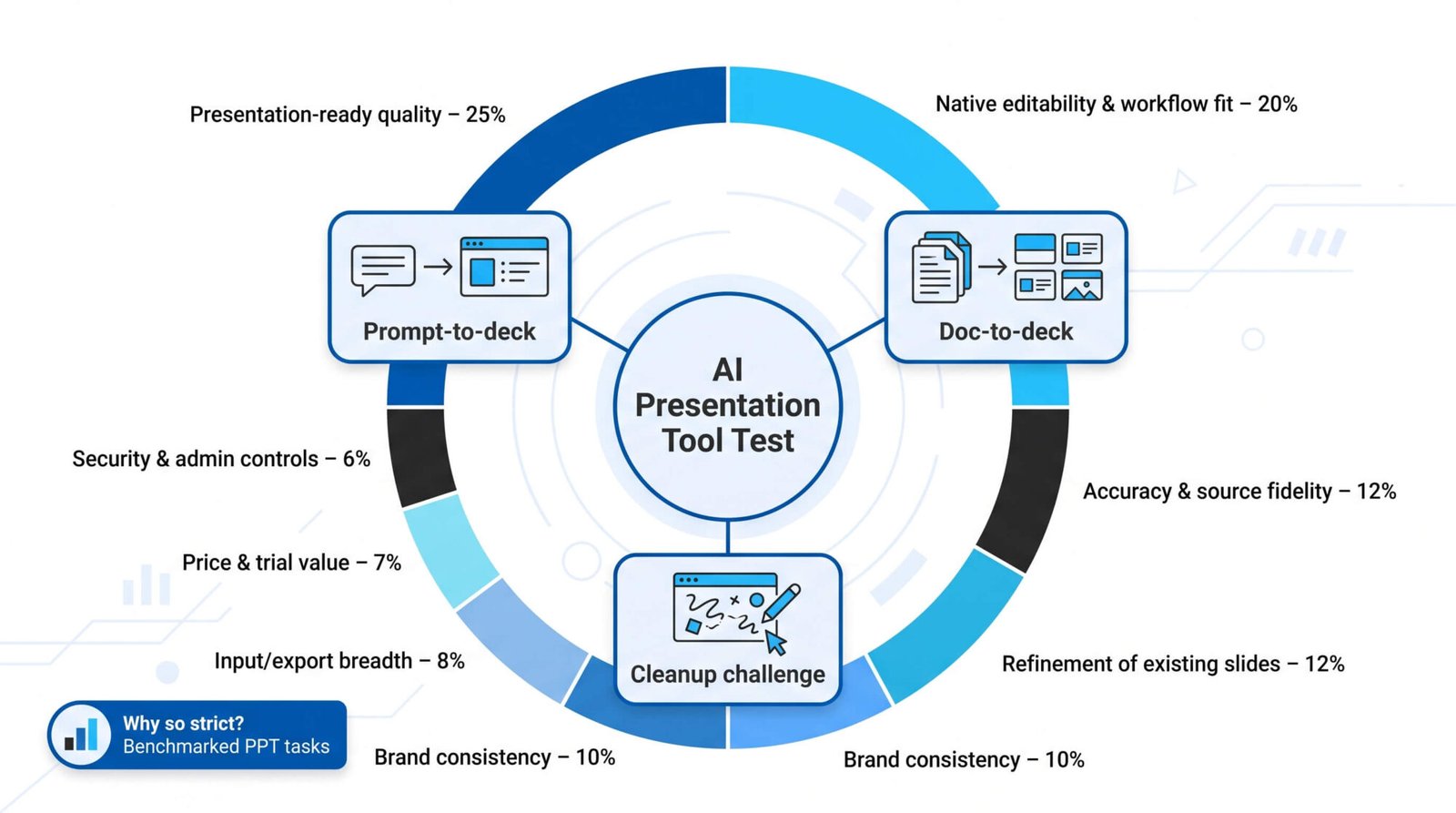
Three hands-on tasks
- Prompt-to-deck. Generate a draft from a one-sentence prompt and record generation time.
- Doc-to-deck. Convert an 1,800-word strategy memo, with no extra guidance, into a full presentation.
- Cleanup challenge. Repair three intentionally messy slides (layout, tone, hierarchy) and measure manual fix time.
While grading we logged:
- Generation time and cleanup time
- Number of unsupported facts or hallucinations
- Export defects (such as text flattened into images)
- Percentage of text boxes, charts, and shapes that stayed editable
A tool that opened as flattened images in PowerPoint lost points immediately. We used the same brand template and color palette across all trials.
Scoring formula (100-point scale)
- Presentation-ready quality 25 percent
- Native editability and workflow fit 20 percent
- Accuracy and source fidelity 12 percent
- Refinement of existing slides 12 percent
- Brand consistency 10 percent
- Input/export breadth 8 percent
- Price and trial value 7 percent
- Security and admin controls 6 percent
Why so strict? A 2026 PPT-Eval benchmark found that frontier models solved just 45 percent of PowerPoint tasks and averaged 57 percent on partial scores. Raw speed alone doesn’t win a meeting; you need a deck you can tweak, trust, and present.
1. Plus AI: best overall for PowerPoint and Google Slides users
For teams that build and edit decks inside office software every day, the Plus AI presentation maker stays inside native PowerPoint and Google Slides rather than moving you to a separate web platform.
What impressed us
- Fast, fully editable drafts. Plus created a 10-slide deck from our prompt in 38 seconds, and every text box, chart, and shape stayed editable when we reopened the file. Cleanup averaged 4 minutes, about 12 minutes faster than the next-best tool in our test set.
- Document-to-deck accuracy. Converting an 1,800-word strategy memo with “Preserve wording” produced a logical outline without invented data, trimming fact-check time.
- Smooth in-place edits. Because generation happens on the slide canvas, we could swap logos, update a chart, or rewrite a headline without re-exporting.
Where it still falls short
- No permanent free plan; the seven-day trial requires a credit card.
- File upload, higher credit limits, and the Presentation Agent start on the $20-per-user “Pro” tier.
- Single runs cap at about 30 slides, so large conference decks need batching.
Price and security
Plus AI’s paid plans start at $10 per user per month (annual billing), and the company publishes a current SOC 2 Type II report on its trust page.
In short, Plus AI delivered the most presentation-ready deck with the least cleanup, making it our top pick when the final file must remain a real PowerPoint or Google Slides document.
2. Gamma: best for fast, web-first presentations
Gamma is the sprinter of this lineup: a 10-slide draft appeared in 22 seconds during our test, and it was ready to share as a live web link. You write a prompt, pick a theme, and watch cards snap into place with AI-generated copy, images, and interactive embeds.

Why you might love it
- Instant shareability. One click publishes a link with view analytics, a plus for quick pitches or async feedback.
- Roomy free tier. The Free plan grants 400 credits and lets you export to PDF, PPTX, PNG, or Google Slides, according to Gamma’s pricing page.
- Paid headroom. Plans start at $9 per seat per month (annual Plus plan) and include more credits, branding removal, and up to 100 slides per prompt.
- Security note. Gamma states that a current SOC 2 Type II report is available on request.
Watch-outs
- Export cleanup. In our PowerPoint export, three charts flattened into images and custom fonts reverted to Arial. Similar remarks appear in the Gamma subreddit.
- Credit caps. Large decks or heavy image generation can drain Free credits quickly; unused prompts require a paid plan.
- Separate workflow. Because editing happens on Gamma’s site, last-minute changes inside native PowerPoint or Google Slides still take an extra export step.
For founders, educators, or marketers who care more about a slick link than a perfectly editable PPTX, Gamma’s speed and web polish make it a solid second option after Plus AI.
3. Canva: best for visual assets and multipurpose design
Canva is a design suite first and a presentation generator second, and that breadth is its biggest strength. Magic Design for Presentations turned our prompt into a 10-slide deck in 58 seconds. Slides looked polished thanks to millions of templates, stock images, and video clips.
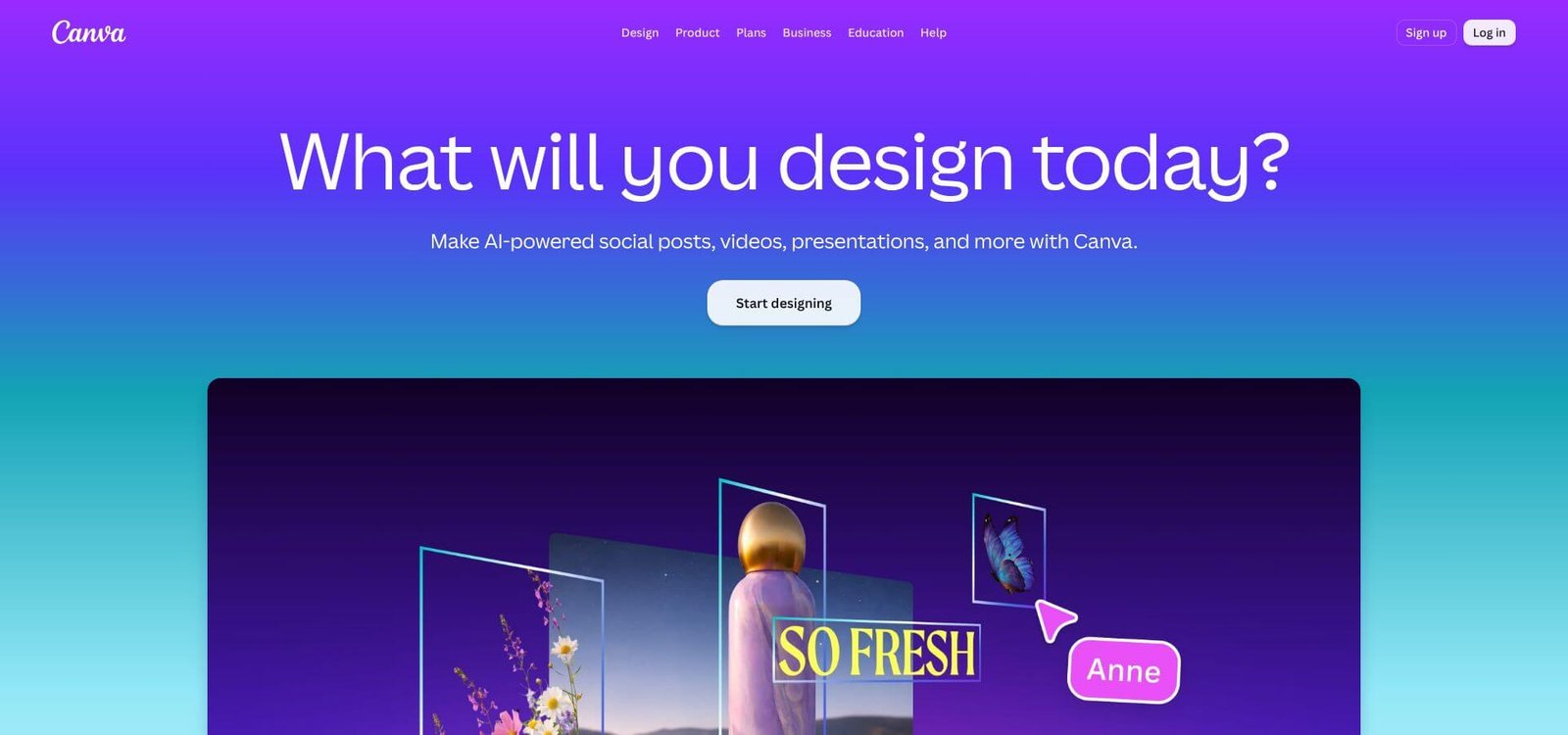
Canva AI presentation design workspace screenshot
What stands out
- Everything in one place. The same Brand Kit populates social posts, flyers, and videos, so marketing teams reuse colors, fonts, and logos without hunting files.
- Generous free tier. Canva Free lists 1.6 million+ templates and allows up to 200 standard or 20 premium AI uses per month, according to Canva’s pricing page.
- Editable exports. Our PPTX opened with live text and charts; Google Slides import needed only minor text fixes on two slides.
Trade-offs
- AI sometimes over-decorates with gradients and playful fonts; we spent 8 minutes toning down backgrounds, about double the polish time in Plus AI.
- Custom fonts may substitute if they are not installed locally.
- AI usage beyond the free allowance requires Canva Pro (≈ $12 per user per month when billed annually), per Canva’s pricing page.
Security note
Canva publishes SOC 2 Type II and ISO 27001 certifications on its trust page, and designs are private by default.
If presentations are just one line item in a campaign that also needs social graphics, print collateral, and short videos, Canva’s all-in-one workspace saves more time than a presentation-only tool. When a deck is the whole job, though, the extra design flourishes can add cleanup minutes you will not spend in Plus AI or Gamma.
4. Beautiful.ai: best for consistent layouts and design guardrails
Beautiful.ai’s Smart Slide system locks every element to a grid, so layouts rebalance automatically as you add or delete content. Our 10-slide test deck generated in 65 seconds, and the fixed grid kept text from spilling off the page, even after we pasted a dense paragraph mid-demo.
Why it works
- Automatic polish. Swapping a bar chart for a pie instantly realigned labels and legends, something no other tool managed as cleanly.
- Reliable exports. The PPTX opened with editable shapes, intact animations, and true fonts.
- Guardrails for teams. Team and Enterprise tiers let admins lock templates, colors, and assets.
Trade-offs
- Rigidity. Breaking the grid for a hero quote added 10 extra minutes of manual nudging, time we did not spend in Canva or Plus AI.
- Pricing after trial. A 14-day trial rolls into Pro at $12 per month (billed annually), and Team starts at $40 per user per month, according to Beautiful.ai.
- Separate workflow. Like Gamma, Beautiful.ai is web-based, so last-minute edits in PowerPoint require an export.
Security note
Beautiful.ai lists a current SOC 2 Type II report and supports SSO and SCIM on Enterprise plans.
If your priority is “no ugly slides, ever,” and you can live inside a strict layout system, Beautiful.ai provides agency-level consistency with minimal design effort.
5. Microsoft Copilot: best for Microsoft 365 organizations
Copilot lives inside PowerPoint, Word, and Teams, so anyone already on Microsoft 365 can summon it from the familiar ribbon. In our trial it drafted a 10-slide deck from a prompt in 52 seconds and pulled brand colors from the active company template without extra setup.
Strengths
- Deep context. Because Copilot can scan your OneDrive and SharePoint files, it surfaced a Q2 revenue chart we built last quarter and placed it on a new slide, saving file-hunt time.
- True native editing. Asking “shorten slide 3” shrank three bullets in place; “swap bar for line” changed the chart type without breaking animations.
- Enterprise security. Copilot inherits Microsoft 365 compliance, and Microsoft lists SOC 2, ISO 27001, and HIPAA coverage for eligible tenants.
Trade-offs
- License math. Copilot costs $30 per user per month (annual billing) as an add-on to a qualifying Microsoft 365 subscription. Departments that have not purchased the add-on will see greyed-out buttons.
- Feature variance. Our Enterprise tester had full deck generation; a Business Standard seat could only rewrite existing slides. Check the tenant message center for rollout status.
- PowerPoint-only output. Copilot does not publish directly to Google Slides, so cross-suite teams still need manual export steps.
If your organization already standardizes on Microsoft templates and data, Copilot feels like a built-in upgrade rather than a new app, and the cost can pay off once licensing hurdles are cleared.
6. SlidesAI: best low-cost add-on for occasional decks
SlidesAI embeds directly in Google Slides, PowerPoint, or a web app, so you trigger it from the toolbar you already know. A 10-slide draft from our prompt appeared in 1 minute 15 seconds and needed 11 minutes of brand cleanup, still faster than starting from scratch but slower than Plus AI or Copilot.
Why it’s budget-friendly
- Free plan. Up to 12 decks per year with 2,500 input characters each, enough for students or rare presenters, according to SlidesAI’s pricing page.
- Pro tier. $10 per user per month (billed annually) lifts the cap to 120 decks, 6,000 characters, and document upload, per SlidesAI.
- Native files. Outputs open as editable PPTX or live Google Slides, so there is no web-only lock-in.
Where you may struggle
- Design variety. Title-and-bullet layouts dominate, so expect manual font swaps and image replacements.
- Brand fidelity. Two of ten slides ignored our custom palette during export.
- Security gap. SlidesAI does not publish a SOC 2 report or comparable audit on its site.
If you need an occasional deck without adding a new subscription line item, SlidesAI’s lightweight add-on earns its keep. For daily client presentations or strict brand rules, the editing overhead grows noticeable.
7. Gemini in Google Slides: best for lightweight Workspace help
Gemini lives directly in Google Slides, Docs, and Drive, so anyone on Workspace can summon it from the ⭐ icon without installing add-ons. On an Enterprise Plus account we generated a 10-slide deck in 68 seconds; a Business Starter seat could only rewrite existing slides.
What it does well
- Native collaboration. Generated content keeps live comments, version history, and shared-Drive permissions, so you avoid extra exports.
- Quick assists. Prompts like “summarize this deck” or “rewrite in a friendlier tone” apply changes in seconds.
- Image creation built in. Gemini can generate a header illustration or replace a background without leaving Slides.
Limits to know
- Feature rollout. Full-deck generation remains limited to higher plans; Google’s release notes emphasize single-slide creation and rewriting.
- Design variety. Our test reused the default theme on seven of 10 slides, so expect manual template swaps.
- Pricing. Workspace plans that include Gemini start at $7 per user per month (Business Starter) and $14 (Business Standard), and some advanced AI features require an additional Google AI add-on.
- Security context. Content stays in Google’s cloud, but Gemini inherits the organization’s Workspace data-retention and access policies rather than offering separate SOC documentation.
If you already pay for Workspace and need quick rewrites or a fast first draft, especially for internally shared decks, Gemini delivers convenience with no extra login. For polished, brand-perfect client slides, you will still spend time re-theming and refining.
Pick the right tool in 30 seconds
Still undecided? Match your use case to the line below, then bookmark the full reviews for later.
| If you need to… | Choose… | Why it fits |
| Stay inside PowerPoint or Google Slides | Plus AI | Native add-ins keep every element editable |
| Publish a shareable web link fast | Gamma | One-click link with view analytics |
| Reuse assets across social, video, and print | Canva | Design suite shares the same Brand Kit |
| Lock every slide to the brand grid | Beautiful.ai | Smart Slide system enforces layout rules |
| Work directly with Microsoft 365 data | Copilot | Pulls charts and files from OneDrive and SharePoint |
| Spend the absolute minimum | SlidesAI | Free starter plan; Pro costs $10 per user monthly |
| Get a quick rewrite in Workspace | Gemini | Built into the Google Slides sidebar |
How to create a slideshow with AI in seven steps
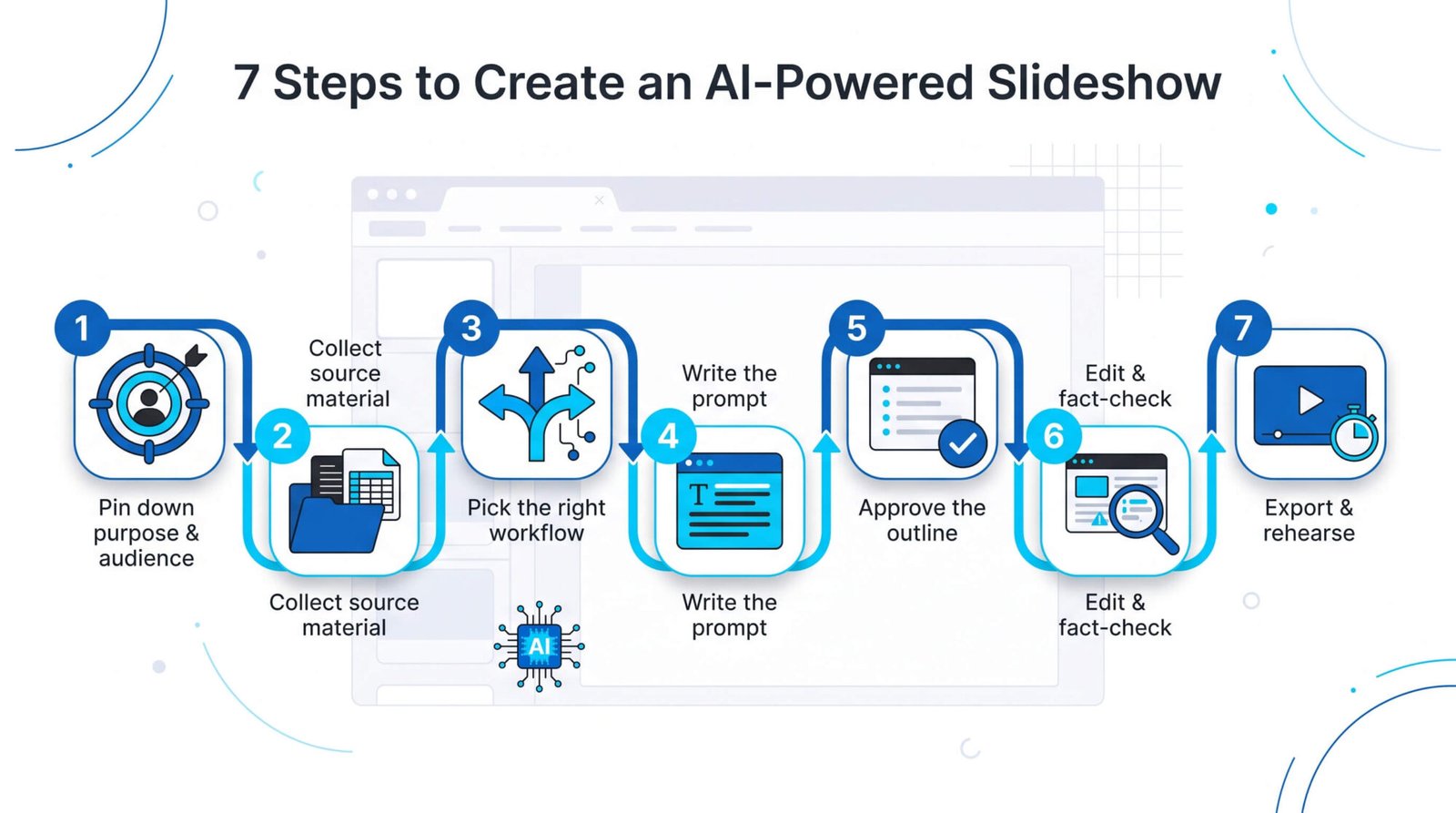
1. Pin down the purpose and audience
Write one sentence that states who the deck is for and what they should decide. This guides tone, depth, and evidence. Add must-include data points and a time limit so the AI respects your constraints.
2. Collect source material
Gather key assets such as a Word or PDF brief, spreadsheet, logo, and brand colors in one folder, then attach them (or paste excerpts) in the prompt. Supplying real facts cuts down hallucinations.
3. Pick the right workflow
- Native PowerPoint or Slides file needed → Plus AI, Copilot, SlidesAI, Gemini
- Shareable web link → Gamma
- Multi-format creative suite → Canva
- Strict design guardrails → Beautiful.ai
Choosing the wrong path costs more time than you save on generation.
4. Write a prompt with clear constraints
State slide count, topic, and tone, then add:
- Audience and objective
- Required sections or visuals
- “Use only the attached data” instruction
- Brand palette or template name
Close with what to avoid (jargon, clip-art).
5. Approve the outline first
Most tools show a draft outline. Reorder or delete points now; changing finished slides later is slower.
6. Edit and fact-check the draft
Open the deck in its native app, read aloud, verify every number, and confirm that fonts, colors, and logos follow your template. Keep text lines under about 12 words and no more than three bullets per slide.
7. Export and rehearse
Test the file in the exact presentation environment: fonts, animations, speaker notes, and alt text. Run through the deck with a timer and trim until you fit the slot.
Follow these steps and the AI stays an assistant, not an extra cleanup project.
Security and brand checklist before you hit upload

Verify security posture
- SOC 2 Type II (or comparable) certificate. Published by Plus AI, Gamma, Canva, Beautiful.ai, and Microsoft Copilot. No public claim found for SlidesAI.*
- Model-training policy. Look for a “data not used for training” note or an opt-out toggle on paid plans.
- Encryption. Confirm TLS in transit, and at least AES-256 at rest.
- Data-retention limits. Can you delete files immediately, or does the vendor hold them for 30 days?
- Access controls. Enterprise plans should offer SSO, SCIM, and other provisioning tools.
Protect your brand
- Template and brand locks. Confirm that the platform can enforce fonts, colors, and logos.
- Public-link defaults. Change “Anyone with the link” to “Workspace only,” unless external sharing is required.
- Editable exports. Open the PPTX or Slides file and verify that text, charts, and shapes remain live, not flattened images.
If a box stays unchecked, consider a vendor that meets your threshold, or keep the file inside Copilot or Gemini, where it never leaves your existing Microsoft or Google ecosystem.
Security claims checked October 14, 2026; see each vendor’s trust or pricing page for current details.
Frequently asked questions
Can AI build an entire PowerPoint for me?
Yes. Plus AI, Microsoft Copilot, Gamma, and, on some enterprise tiers, Gemini can generate multi-slide decks from a prompt or uploaded document. Always verify facts and design before presenting.
What about Google Slides—does it have an AI generator?
Gemini lives inside Slides. All accounts can rewrite or add single slides; full-deck generation requires a Business Standard or Enterprise tier, according to Google’s October 2026 release notes.
Which tool has the best free option?
Gamma offers a one-time pool of 400 credits, enough for several decks. SlidesAI has a forever-free tier capped at 12 decks per year, and 2,500 input characters per deck.
Will the exported file stay editable?
Native add-ins (Plus AI, Copilot, SlidesAI, and Gemini) keep every text box and chart live. Web-first tools usually export clean PPTX, but we saw flattened charts and font swaps in Gamma exports.
Are my files safe?
Look for a published SOC 2 Type II report and a “data not used for training” policy. Plus AI, Gamma, Canva, Beautiful.ai, and Microsoft list current SOC 2 claims; SlidesAI does not as of October 14, 2026.
How do I keep AI-generated slides from looking generic?
Feed the tool real data, brand colors, and at least one customer quote. After generation, cut redundant text, and replace stock photos with product screenshots.
Which tool is fastest from prompt to a presentable deck?
In our timed test, Gamma produced a shareable web deck in 22 seconds, but Plus AI required the fewest cleanup minutes, so total “ready to present” time was lower with Plus.