Skip to content
Google is stepping up its game in the AI world, and one of its most exciting innovations so far is the Nano Banana image-generation and editing model. After the first version went viral, Google released an upgraded version, Nano Banana Pro, which promises better control and sharper results.
However, this has instantly sparked curiosity: Is Nano Banana AI Image Generator actually delivering the level of quality modern creators expect? No worries. In this detailed article, you will have a practical look at what Nano Banana Pro is and what it can do.
What is Nano Banana Pro?
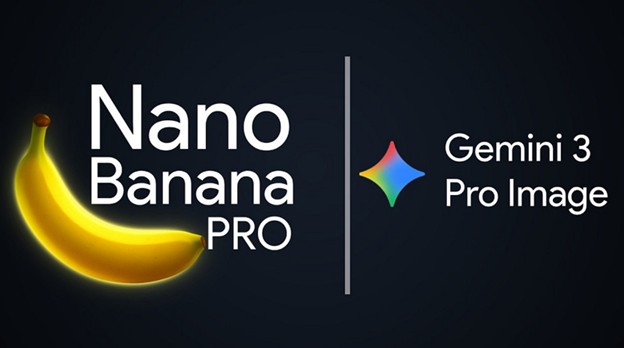
Nano Banana Pro or Gemini 3.0 Pro is the latest high-end Image generation and editing model by Google, launched on 20 November 2025. This production-ready, upgraded version of the original Nano Banana brings studio-level control to creators, professionals, and developers.
It blends deep reasoning and real-world knowledge to create visuals that actually make sense, such as turning ideas or raw data into clear diagrams. You can also generate artistic styles, photorealistic scenes, infographics, or posters, as well as make edits without mangled faces.
Nano Banana Pro Features:
- Support various aspect ratios and 1K to 4K resolution, thus delivering images with clean edges and accurate skin tone
- Better text rendering to embed readable text into images, such as signs/menus, even in multiple languages, perfectly aligned with the layout
- Capable of pulling real facts and references with search grounding to generate contextually aware photos
- Let you combine up to 14 input images while preserving faces, products, or angles of up to 5 people to compose a complex scene
- Various creative controls to adjust lighting, camera angle, focus, and style transfer, suitable for an actual photoshoot
Limitations of Nano Banana Pro:
- Generated images are still below the actual 1080p resolution
- Text can distort, especially in backgrounds or undefined in prompts
- Fine details like textures and small objects may appear inconsistent
- Data-based complex diagrams can contain inaccurate
- Translations may not always be technically or culturally correct
- Lighting and blended edits can sometimes look unnatural
How to Use Gemini AI Image Generator?
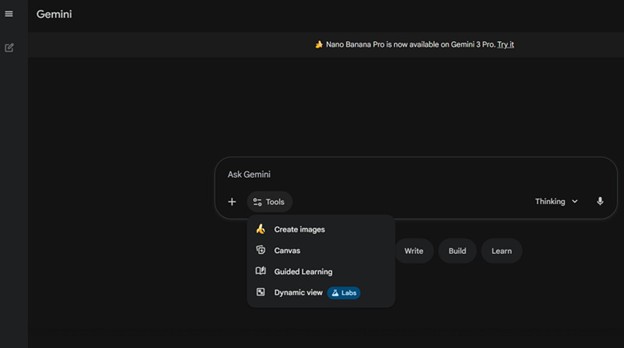
Step 1. Open the Gemini 3.0 App
The first step is to open the Google Gemini app and click the “Tools” tab. Now, select “Create Images.” When you see Gemini Pro 3 here, press the “Try it” tab.
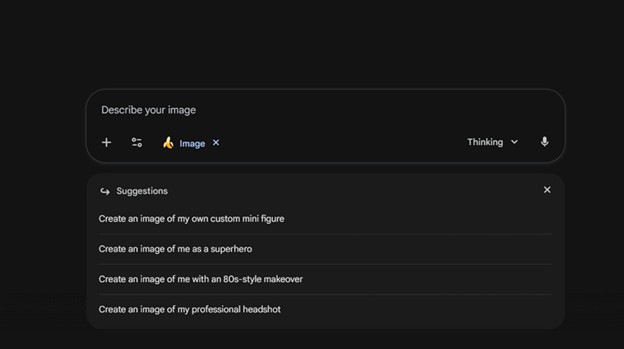
Step 2. Enter Your Prompt
Next, you need to give a clear, descriptive text prompt. Make sure it’s detailed and includes context and surrounding elements, such as lighting, mood, aspect ratio, and more.
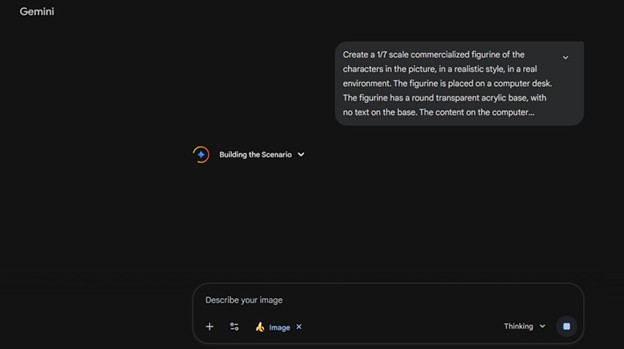
Step 3. Upload Reference Images
Then, upload the reference images to guide style, composition, or character look. It’s optional, but it keeps your objects, people, and light consistent across the output.
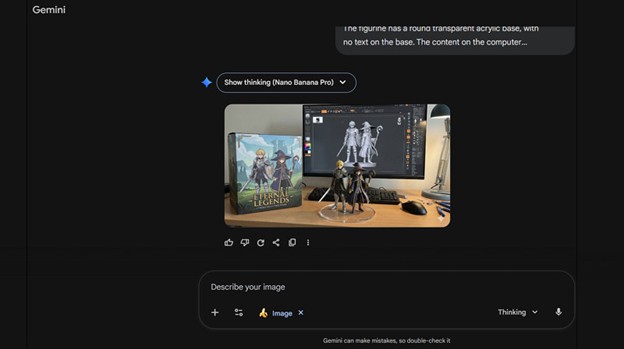
Step 4. Save the Output
Once the image is generated, check it and, if it looks fine as intended, hit the save icon to export it to your device. All done!
Part 2. HitPaw FotorPea AI Generator
While Gemini 3.0 is a powerful AI image generation model, users who need more flexibility, higher quality, or multiple editing features should go for HitPaw FotorPea.
This remarkable software leverages advanced AI models, such as Nano Banana Pro, to create high-quality marketing content. It helps you easily produce visually stunning images or unique art in various styles from simple text input. You can also refine your existing photos to give them a new look without affecting their original quality. Besides, it allows enhancing the generated images or eliminating the shortcomings if needed.
Main Features:
- Available on Windows, Mac, iPhone, iPad, Android, and online
- Support generating multiple images in a batch to save time
- Advanced settings like prompt strength and seed options
- Export the generated images in platform optimized formats
- Leave no watermark on the enhanced or generated images
How to Generate Photos with Funny Prompts using HitPaw FotorPea?
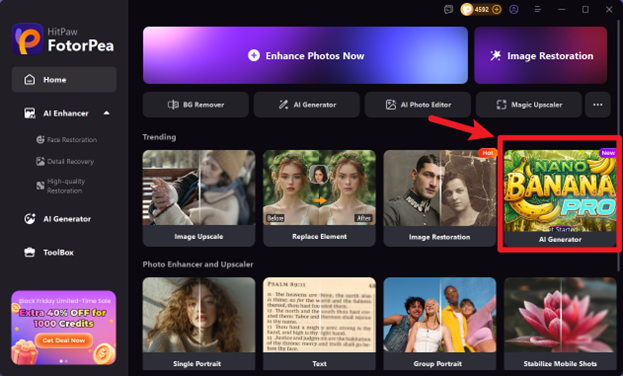
Step 1. Access the AI Generator
First of all, launch this program and click the “AI Generator” tool from the side column. Now, select between the “Text to Image” or “Image to Text” option.
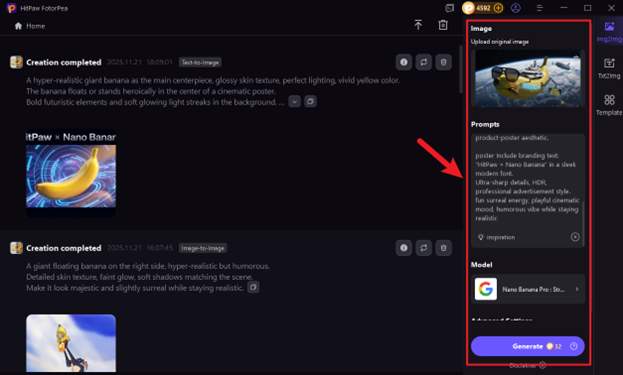
Step 2. Enter a Funny Prompt
For “Image to Image,” you can upload the photo and enter any funny prompt. For example, make an image of a nano-sized banana mixing potions to upgrade itself to Nano Banana Pro.
Step 3. Generate Images
Next, you can select the image size, resolution, and art style, as well as adjust the advanced settings. Then, press the “Generate” tab.
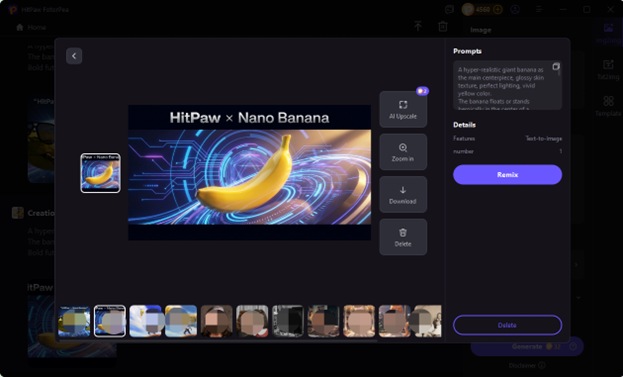
Step 4. Export the Output
Once the photos are generated, you can preview them. Lastly, go for the upscale or download option for any image. That’s all!
FAQs about Nano Banana Pro
Although you can use images from Nano Banana Pro commercially with a royalty-free license, you must also follow Google’s Terms of Service. Plus, avoid creating content that is illegal, defamatory, or infringes on copyright.
Gemini AI Image generator is ideal for professionals who need fast, accurate, and consistent visuals, including marketers, designers, creators, and e-commerce teams. However, the free version is enough for fun or simple edits.
Nano Banana Pro stands out with faster Gemini-powered image generation, a simple interface, and consistent output. It focuses on convenience, speed, and reliability compared to other models.
Conclusion
No doubt, Nano Banana AI image generator works well for both beginners and professionals; however, it may struggle with fine details and lighting issues in complex edits. To overcome these limitations, HitPaw FotorPea is highly recommended.
It offers advanced editing features, prompt settings, and high-quality output while incorporating the Nano Banana Pro model. So, let’s try it today and create high-quality images for commercial use!