You are scrolling through Facebook and find a video you want to keep. Maybe it is a recipe, a tutorial, or a funny clip you want to share later. But Facebook does not make downloading obvious. So how can you save Facebook videos without losing them in your feed forever?
The good news is you have several options. Some methods save videos within the Facebook app itself. Others let you download Facebook videos directly to your phone or computer. The right approach depends on what you want to do with the video afterward.
This guide covers every reliable method available right now. Whether you use an iPhone, Android, or desktop computer, you will find a solution that works in under two minutes.
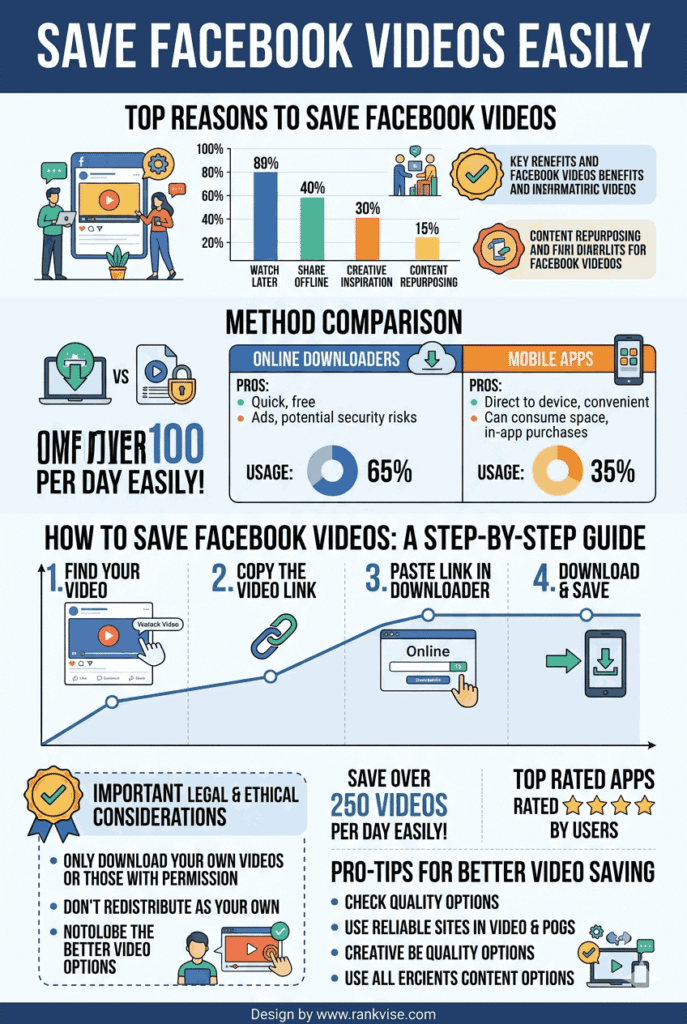
Method 1: Save a Facebook Video Within the App
Facebook has a built-in save feature that bookmarks videos to your account. This is the fastest option when you just want to find the video again later.
How It Works
- Find the video in your Facebook feed or on a page.
- Tap the three dots icon in the top right corner of the post.
- Select “Save video” from the dropdown menu.
- The video is now stored in your Saved collection.
How to Find Your Saved Videos
Open the Facebook app and tap the menu icon. Look for “Saved” in your shortcuts list. All your bookmarked videos, articles, and posts appear here organized by date.
Limitations of This Method
This approach does not download the video to your device. It only bookmarks the post inside Facebook. If the original uploader deletes the video, it disappears from your saved collection too. You also need an internet connection to watch it again.
This method works best when you want quick access to a video but do not need an offline copy stored on your device.
Method 2: Download Facebook Videos on a Computer
If you want to save a Facebook video to your computer for offline viewing, you can do this through your web browser without installing anything.
Step-by-Step Process
- Open Facebook in your browser and find the video you want.
- Click on the video to open it in full view.
- Look at the URL in your browser’s address bar.
- Change “www” to “mbasic” in the URL and press Enter.
- The page reloads in Facebook’s basic mobile layout.
- Right-click on the video and select “Save video as.”
- Choose a folder on your computer and save the file.
This technique works because the mobile-basic version of Facebook serves video files differently. Your browser can access the direct video file and save it like any other download.
Alternative Browser Method
Some users prefer to view the page source to locate the video file URL. Right-click the page, select “View Page Source,” and search for “.mp4” in the code. Copy that URL, paste it into a new tab, and save the video from there. This method requires a few extra steps but works reliably across most browsers.
Method 3: Save Facebook Videos on iPhone
Apple’s ecosystem makes saving videos from Facebook slightly more involved than Android. But it is still straightforward once you know the steps.
Using the Facebook App and Screen Recording
Every iPhone includes a built-in screen recorder. This captures anything on your screen, including Facebook videos playing in the app.
- Open Settings, then Control Center, and add “Screen Recording” if it is not already there.
- Open the Facebook video you want to save.
- Swipe down from the top right corner to open Control Center.
- Tap the screen recording button and wait for the three-second countdown.
- Play the video from the beginning.
- Stop the recording when the video finishes.
- Find the recording in your Photos app.
This captures the video in whatever quality it plays on your screen. It also records any audio playing through your phone, so make sure notifications are silenced before you start.
Using a Video Downloader App
Several apps on the App Store let you download Facebook clips directly. Search for a Facebook video downloader in the App Store. Most work by having you paste the video link into the app. It then processes and saves the file to your camera roll.
Check app reviews before downloading. Choose apps with high ratings and recent updates to avoid ones that no longer work with current Facebook changes.
Method 4: Download Facebook Videos on Android
Android devices offer more flexibility for saving social media videos. The operating system handles file downloads more openly than iOS.
Using a Mobile Browser
- Open Facebook in the app and find the video.
- Tap the three dots on the post and select “Copy link.”
- Open your phone’s web browser and paste the link.
- Change “www” to “mbasic” in the URL and load the page.
- Long-press on the video and select “Download video.”
- The file saves to your Downloads folder.
This method requires no third-party apps. It works with Chrome, Firefox, and most other Android browsers.
Using a Third-Party App
The Google Play Store has many apps designed to download videos from Facebook. Apps like Snaptube or Video Downloader for Facebook are popular choices. You paste the video URL, choose your preferred quality, and the app saves the file to your phone.
Always download these apps from the official Play Store. Third-party APK files from unknown sources can carry security risks that compromise your device.
Method 5: Online Facebook Video Downloaders
Several websites let you save Facebook videos without installing any software. These web-based tools work on any device with a browser.
How Online Downloaders Work
- Copy the link to the Facebook video you want to save.
- Visit an online video downloader site.
- Paste the video URL into the provided field.
- Click the download button.
- Choose between HD or standard quality.
- Save the file to your device.
Popular online tools include SaveFrom, FBDown, and SnapSave. These sites process the Facebook link and generate a direct download link for the video file.
Things to Watch Out For
Online downloaders often display aggressive advertisements. Some ads mimic download buttons to trick you into clicking. Look for the actual download link and avoid anything that asks you to install software or browser extensions.
Use an ad blocker if possible. Never enter personal information on these sites. They need only the video URL to work. Anything asking for your Facebook login is a scam.
Which Method Should You Choose?
The best approach depends on your situation and what you plan to do with the video.
| Scenario | Best Method |
|---|---|
| Quick bookmark for later viewing | Facebook’s built-in save feature |
| Download to computer for editing | Browser URL method on desktop |
| Save to iPhone camera roll | Screen recording or downloader app |
| Save to Android phone storage | Mobile browser method or third-party app |
| No app installs, any device | Online video downloader website |
For casual saving, the built-in Facebook feature handles the job. For offline access or sharing outside Facebook, you need one of the download methods.
Important Notes About Copyright and Privacy
Saving Facebook videos for personal use is generally acceptable. Watching a cooking tutorial offline or keeping a family video on your phone raises no serious concerns. However, sharing or redistributing someone else’s video content can create problems.
Respect the original creator’s rights. Do not reupload downloaded videos to other platforms as your own content. Do not use downloaded videos for commercial purposes without permission from the creator. Private videos shared within groups or restricted audiences should stay private.
Facebook’s terms of service also discourage automated downloading or scraping. The manual methods described in this guide are for personal, occasional use. Mass downloading video content violates platform policies and could result in account restrictions.
Why Does Facebook Make Saving Videos Difficult?
Facebook wants you to stay on its platform. Every time you open the app to rewatch a saved video, you see ads and engage with more content. Allowing easy downloads reduces time spent inside the app.
Video content also drives significant advertising revenue. Creators and brands upload videos expecting them to be viewed within Facebook’s ecosystem. Direct downloads bypass the view counts and engagement metrics that make Facebook valuable to advertisers.
This is why there is no obvious download button. The platform is designed to keep content within its walls. The methods in this guide work around those design choices for legitimate personal use.
FAQs
Yes. On Android, use the mobile browser method by changing “www” to “mbasic” in the video URL. On iPhone, use the built-in screen recording feature to capture the video directly.
Saved videos go to your Saved collection inside Facebook. Access it through the menu icon on the app’s main navigation. Videos remain there unless the original poster deletes them.
Downloading for personal viewing is generally acceptable. However, redistributing, reposting, or using someone else’s video commercially without permission may violate copyright laws and Facebook’s terms of service.
Yes. Once a Facebook Live broadcast ends, the video remains on the page as a regular post. You can save or download it using any of the methods described in this guide.
Most established tools like FBDown and SnapSave still work reliably. Facebook occasionally changes its video delivery system, which temporarily breaks some downloaders. If one site fails, try an alternative.