Skip to content
Every enterprise runs on data. But data rarely arrives in the format your systems need. That gap between raw files and usable structured data is where file content conversion becomes essential. Whether you work with SAP PI/PO, middleware platforms, or custom integration tools, understanding this process saves time, reduces errors, and keeps operations running smoothly.
- Convert flat files (CSV, TXT, fixed-width) into structured formats like XML or JSON for reliable system integration.
- Follow a five-step process: define record structure, set delimiters, configure encoding, execute transformation, then validate with real sample files.
- Key configuration parameters: recordset structure, field and end separators, encoding, key field types, and processing mode.
- Common failures: delimiter mismatches, encoding conflicts, oversized files, missing fields, and SFTP adapter misconfiguration.
- Best practices: document configs, test with production-like data, implement error handling, monitor performance, version control, and secure file transfers.
This guide breaks down everything you need to know. You will learn how it works, why it matters, and how to do it right.
What Is File Content Conversion?
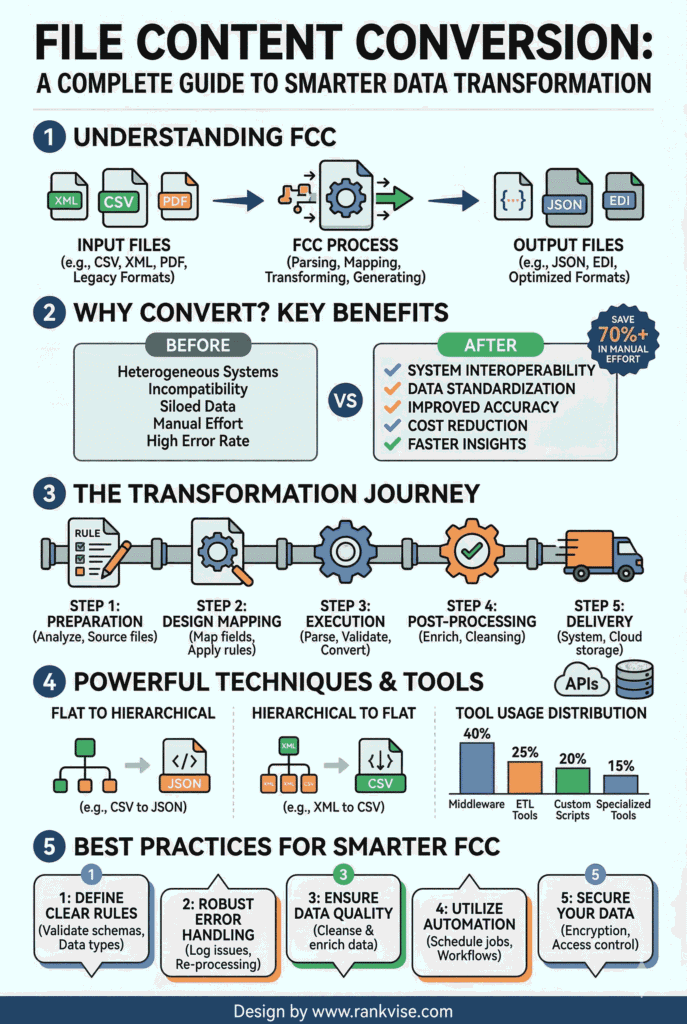
File content conversion is the process of transforming data from one file format into another. Most commonly, it converts flat files like CSV, TXT, or fixed-width formats into structured formats such as XML or JSON. The reverse transformation also applies.
Think of it as a translator. Your source system speaks one language, and your target system speaks another. File content conversion bridges that gap automatically. In enterprise integration platforms like SAP PI/PO, this function is built directly into file and SFTP adapters.
Without this conversion step, systems cannot exchange information reliably. Manual reformatting would consume hours and introduce costly human errors.
Why Does File Content Conversion Matter for Businesses?
Data integration drives modern business operations. Companies exchange purchase orders, invoices, inventory records, and shipping data across dozens of systems daily. Each system often uses a different file structure.
File content conversion eliminates the friction. It ensures that a flat file from a legacy ERP system arrives as clean XML in your middleware layer. This automation reduces processing time from hours to seconds.
Here is why businesses prioritize this capability:
- Operational efficiency: Automated conversion removes manual data reformatting entirely.
- Error reduction: Structured rules catch formatting issues before they reach downstream systems.
- Scalability: Enterprises process thousands of files daily without adding headcount.
- Compliance: Standardized data formats help meet regulatory and audit requirements.
- System interoperability: Different platforms communicate without custom coding for every exchange.
Organizations that ignore proper data format transformation often face integration failures, delayed shipments, and reconciliation nightmares.
How Does the File Content Conversion Process Work?
The conversion process follows a logical sequence. Understanding each step helps you configure it correctly and troubleshoot issues faster.
Step 1: Define the Record Structure
Every flat file contains records. Each record holds fields separated by delimiters like commas, tabs, or pipes. You start by defining the recordset structure. This tells the conversion engine how to interpret each line of data.
For example, a CSV file with customer orders might have fields for order ID, product name, quantity, and price. You map each field to its corresponding XML element.
Step 2: Set Delimiters and Separators
Delimiters separate individual fields within a record. End separators mark where one record ends and the next begins. Common choices include commas for field separation and newline characters for record separation.
Choosing the wrong delimiter is one of the most frequent causes of conversion failure. Always verify your source file’s actual structure before configuring.
Step 3: Configure Encoding Parameters
Character encoding determines how text characters are stored and interpreted. UTF-8 is the most widely used standard. However, legacy systems may use ASCII or ISO-8859-1.
Mismatched encoding causes garbled text, broken special characters, and failed processing. Always align encoding settings between the source file and the conversion configuration.
Step 4: Execute the Transformation
Once configured, the adapter reads the flat file, applies the defined rules, and outputs the structured format. In SAP PI/PO, the file adapter handles this natively through its content conversion parameters. The resulting XML message then enters the integration pipeline for routing and mapping.
Step 5: Validate and Test
Never deploy a conversion configuration without thorough testing. Use sample files that represent real production data. Check edge cases like empty fields, special characters, and unusually large records.
Key Configuration Parameters You Should Know
Proper configuration is the backbone of reliable file content conversion. The table below outlines the most critical parameters used in enterprise integration platforms.
| Parameter | Purpose | Example Value |
|---|---|---|
| Recordset Structure | Defines field names and sequence | CustomerID, Name, Amount |
| Field Separator | Separates fields within a record | Comma (,) or Tab (\t) |
| End Separator | Marks the end of each record | Newline (‘nl’) |
| Encoding | Sets character interpretation standard | UTF-8, ASCII, ISO-8859-1 |
| Key Field Type | Identifies header vs. detail records | 0 = header, 1 = detail |
| Processing Mode | Determines read behavior | Read entire file vs. line-by-line |
Getting even one of these parameters wrong can break the entire conversion. Double-check every setting against your actual source file before moving to production.
Common Challenges in File Content Conversion
Even experienced integration teams encounter recurring issues. Recognizing these pitfalls early prevents costly downtime and data loss.
Delimiter Mismatches
The configured delimiter does not match the actual file structure. This causes fields to merge or split incorrectly. Always inspect raw source files before setting delimiters.
Encoding Conflicts
A file created in ISO-8859-1 but read as UTF-8 produces corrupted characters. This is especially common with international data containing accented characters or non-Latin scripts. Confirm encoding with your data source team.
Large File Performance Issues
Files with millions of records can overwhelm standard processing. The adapter may time out or consume excessive memory. Solutions include pre-processing large files into smaller batches and enabling parallel processing where supported.
Missing or Extra Fields
Source systems occasionally send records with fewer or more fields than expected. Without proper error handling, this breaks the entire file conversion. Build exception handling rules that log anomalies without halting the process.
Adapter Misconfiguration in SFTP Scenarios
SFTP adapters introduce additional complexity. Security handshake failures, incorrect directory paths, and permission issues frequently disrupt file retrieval before conversion even begins. Test connectivity independently before configuring content conversion.
Best Practices for Reliable Data Format Transformation
Following proven practices dramatically improves conversion success rates. These recommendations come from real-world enterprise integration experience.
- Document every configuration — Maintain a reference sheet for each interface. Include field mappings, delimiters, encoding, and expected file volumes.
- Test with production-like data — Synthetic test files often miss edge cases. Use sanitized copies of actual production files whenever possible.
- Implement robust error handling — Configure alerts for conversion failures. Log detailed error messages that identify the exact record and field causing the issue.
- Monitor performance continuously — Track processing times and file volumes. Set thresholds that trigger alerts before bottlenecks cause failures.
- Version control your configurations — Treat conversion parameters like code. Store them in version-controlled repositories so you can roll back changes quickly.
- Validate output against business rules — Technical success does not guarantee business accuracy. Confirm that converted data meets downstream system requirements and business logic.
- Secure your file transfers — Use encrypted protocols like SFTP or FTPS. Apply access controls to directories and audit file access logs regularly.
File Content Conversion Tools and Platforms
Several platforms handle file content conversion natively or through extensions. Your choice depends on your existing technology stack and integration complexity.
| Platform | Conversion Capability | Best For |
|---|---|---|
| SAP PI/PO | Native file adapter with built-in FCC | SAP-centric enterprises |
| SAP Integration Suite | Cloud-native with adapter support | Hybrid cloud integrations |
| MuleSoft | DataWeave transformation engine | Multi-cloud environments |
| Microsoft Azure Logic Apps | Built-in flat file decoding | Microsoft ecosystem users |
| Dell Boomi | Flexible data mapping tools | Mid-market businesses |
| Apache NiFi | Open-source data flow management | Cost-conscious organizations |
Each platform has strengths. Evaluate based on your data volumes, supported formats, security requirements, and team expertise.
Security Considerations for File Conversion
File content conversion often handles sensitive business data. Protecting that data throughout the conversion pipeline is non-negotiable.
Encrypt files at rest and in transit using industry-standard protocols. Restrict access to conversion configurations to authorized personnel only. Audit all file processing activities and retain logs for compliance purposes.
When using cloud-based integration platforms, verify that your provider meets relevant compliance standards such as SOC 2, GDPR, or HIPAA. Data residency requirements may also influence where conversion processing occurs.
Regularly update your integration platform and adapters. Security patches address vulnerabilities that could expose your file transfer infrastructure to unauthorized access.
FAQs
It is the process of transforming flat files like CSV or TXT into XML format within SAP’s integration adapters, enabling structured data exchange between systems.
It commonly supports CSV, TXT, fixed-width, and tab-delimited flat files, converting them to XML or JSON for enterprise system consumption.
Inspect the raw source file to identify the actual delimiter used, then update your adapter configuration to match that exact character.
Yes, but you should enable batch processing or parallel execution and optimize adapter memory settings to prevent timeouts and performance degradation.
No. Platforms like MuleSoft, Azure Logic Apps, Dell Boomi, and Apache NiFi all support similar data format transformation capabilities for diverse integration needs.